
Anatomy of a chat response
Every part of a TaxFigure chat answer — confidence badge, BLUF summary, inline citations, sources panel, and follow-ups.
A TaxFigure chat response isn't just prose — it's a structured answer with a confidence signal, a bottom-line summary, inline citations, and follow-ups. This page walks through each part so you know what to trust and where to dig deeper.
While TaxFigure is working
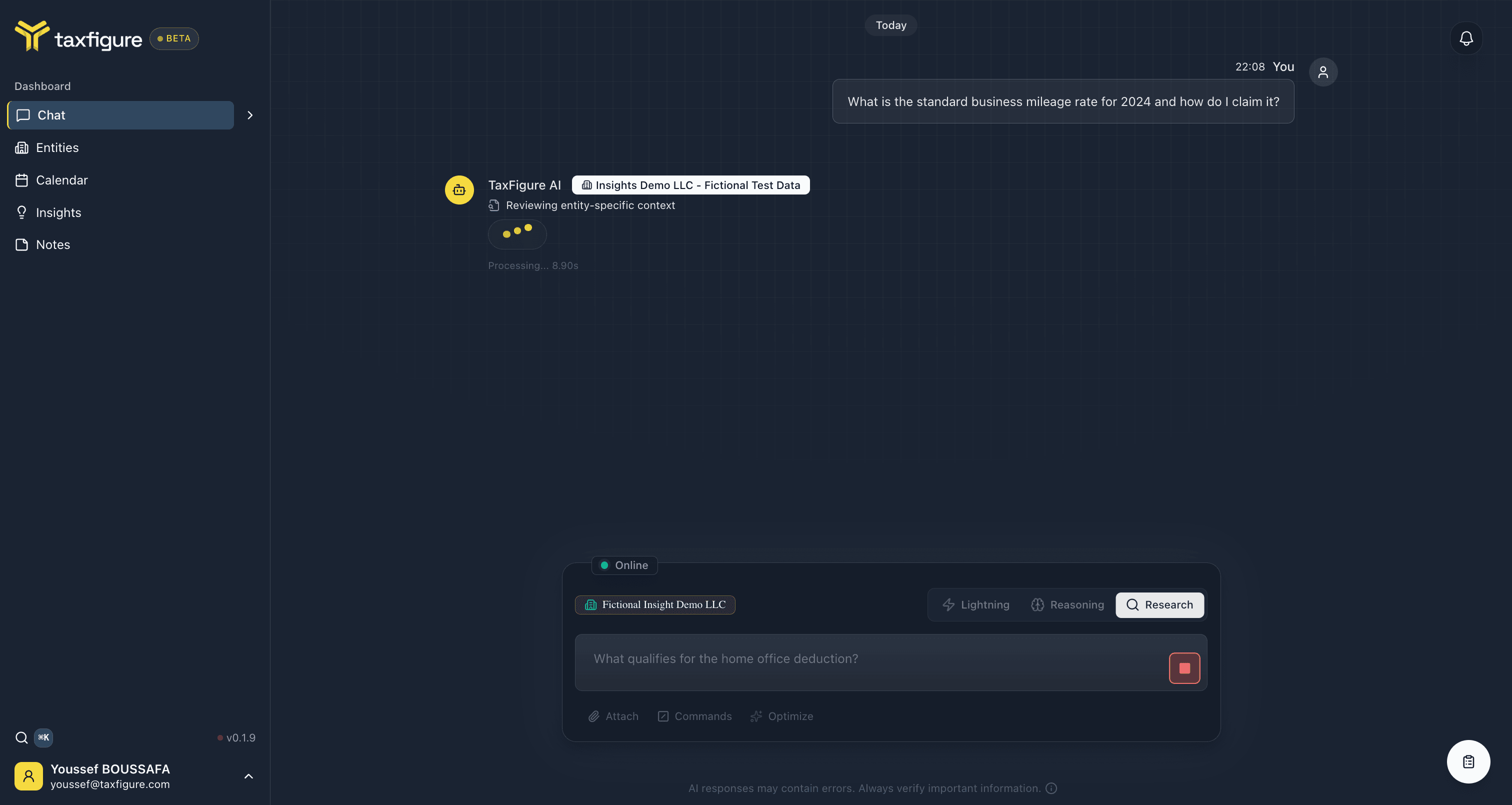
Before the answer appears, TaxFigure shows a processing indicator in place of the response. It reports what the AI is doing right now (e.g. "Reviewing entity-specific context") along with the elapsed time, and — if the conversation is scoped to an entity — the entity badge it's drawing context from. Research-mode answers take longer than Lightning ones; the live status is how you tell it's still working.
Response header & Quick Summary
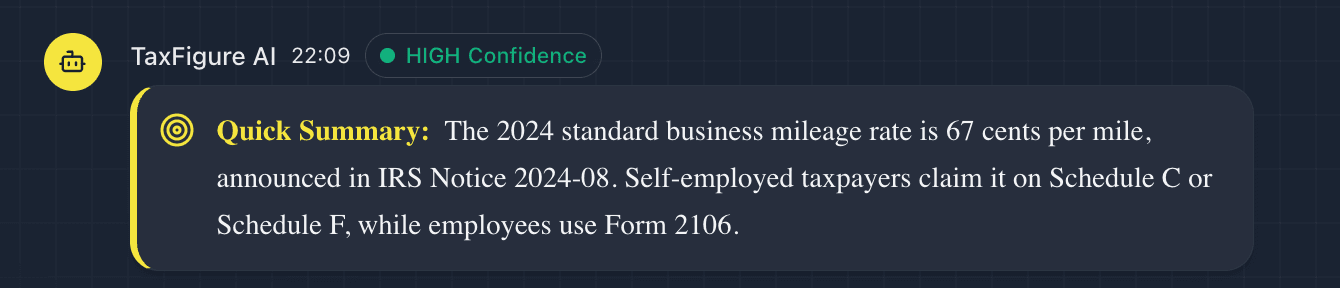
Every response opens with a small header bar and a Quick Summary block (a "bottom line up front" answer).
- TaxFigure AI — sender label.
- Timestamp — when the response finished.
- Confidence badge —
HIGH,MEDIUM, orLOW, based on how well the cited sources support the answer.
HIGH confidence means TaxFigure found clear, on-point authority.
MEDIUM means the answer is well-grounded but extrapolated from
related sources. LOW is a signal to verify before relying on the
answer in client work.
The Quick Summary sits directly below the header. It's a 1–2 sentence "use this if that's all you need" answer. Skip the rest of the response if the summary is enough.
The body & inline citations
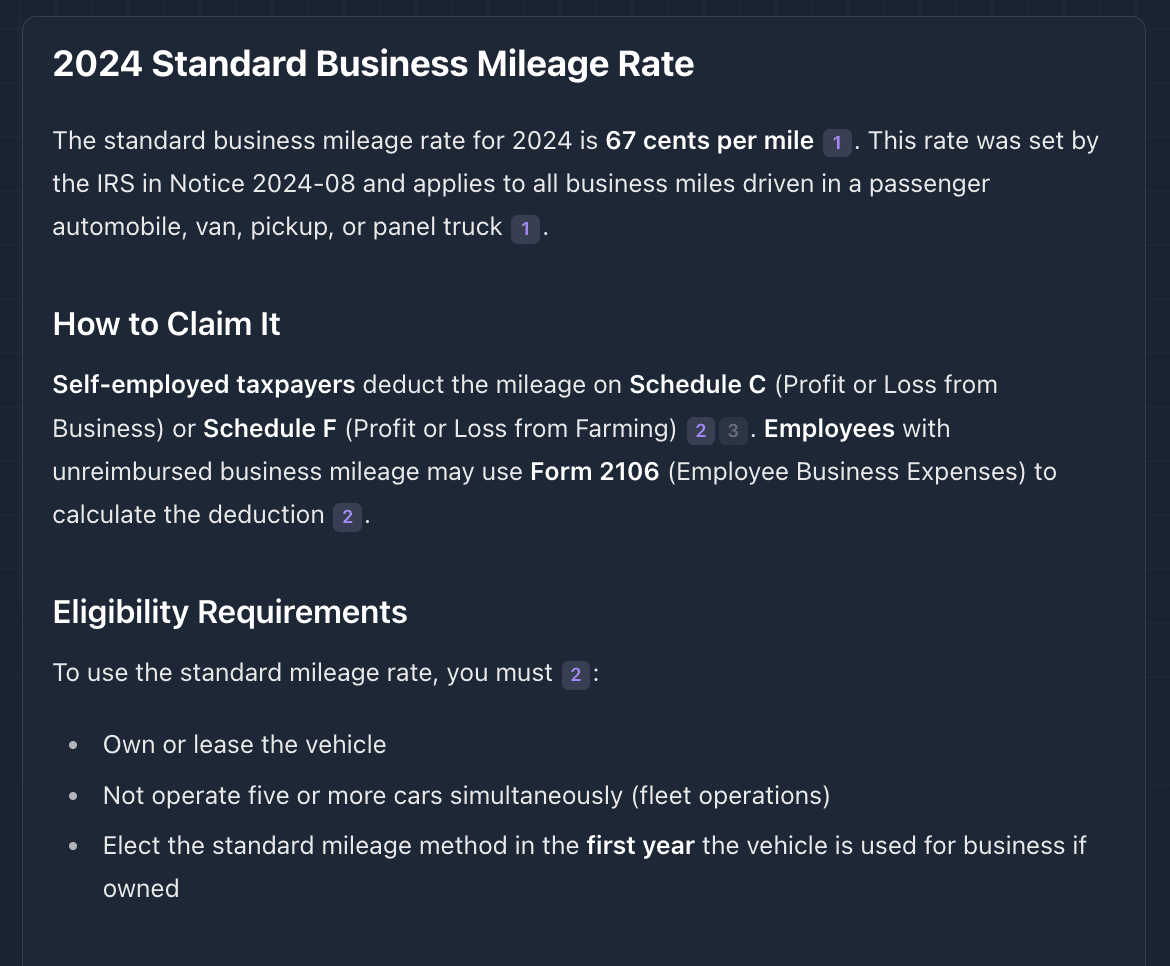
Below the summary, the body lays out the full answer:
- H2 / H3 headings break the answer into sections (e.g. "How to Claim It", "Eligibility Requirements").
- Bold key terms for rates, schedule names, form numbers, and filing-status conditions you'll want to skim for.
- Bulleted lists for eligibility checklists and requirements.
The small numbered chips — 1, 2, 3, 4 — embedded in the prose
are inline citations. Each is clickable; it jumps to the matching
source in the citations panel. The same source may be referenced
multiple times in one answer (e.g. 2 appearing in five different
places).
Response actions
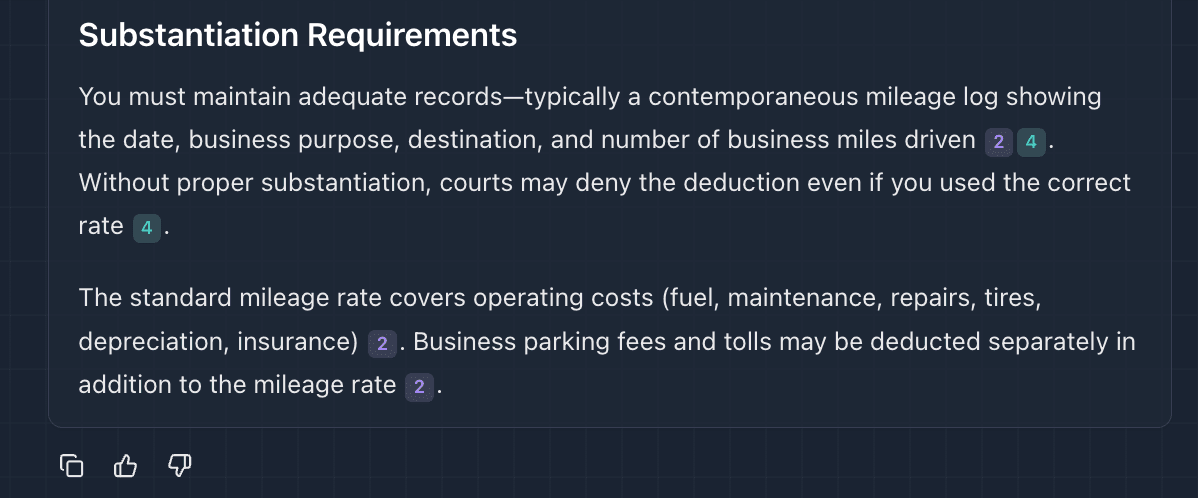
Three buttons sit at the bottom of every response:
- Copy message — copies the response to your clipboard as plain-text Markdown. Useful for pasting into a client email or memo.
- Helpful / Not helpful — quick feedback that helps us tune TaxFigure's responses. Use it freely; both signals are valuable.
Citation categories

Just under the actions, TaxFigure groups its cited sources into categories:
- Revenue Rulings & Procedures
- Case Law
- Publications & Guidance
Each row shows the category name and the count of sources from that category. Click Explore to expand and see those sources inline, or click View all N citations to open the full panel.
The citations panel
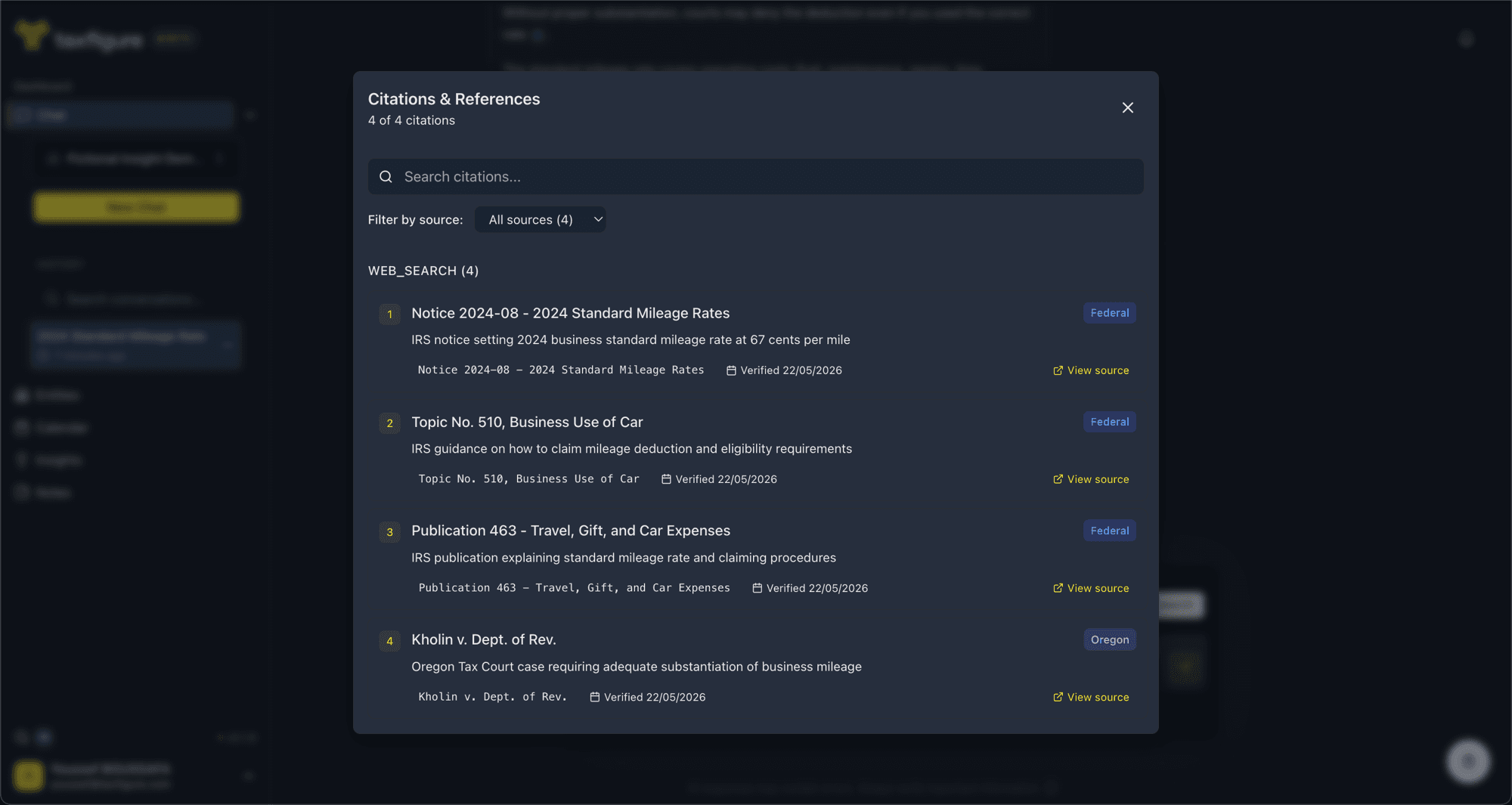
The citations panel opens as a modal listing every source TaxFigure used. For each citation you get:
- Number — matches the inline chip in the response body.
- Title — e.g. "Notice 2024-08 — 2024 Standard Mileage Rates".
- Jurisdiction badge —
Federal, the state name, orLocal. - Description — a one-line summary of what the source is.
- Verified date — when TaxFigure last confirmed the source was available and current.
- View source — opens the original document in a new tab.
You can search citations by title or excerpt, and filter by source type (statutes, regulations, guidance, case law, etc.).
Follow-up questions

At the very bottom of every response, TaxFigure suggests two or three follow-up questions related to your original question. Click one to ask it as the next message in the same conversation — entity context and prior history are preserved.
Follow-ups are a fast way to dig into a topic without typing — and a hint at related angles you might not have thought to ask.
A word on accuracy
The disclaimer below the chat input is real: "AI responses may contain errors. Always verify important information." TaxFigure cites its sources precisely so you can verify quickly — but the final judgment, especially on client filings, is yours.