
Documents
Upload tax documents to an entity and let TaxFigure parse them into structured data.
TaxFigure uses your uploaded documents to ground its answers. Upload a W-2, 1099, K-1, or any other tax document, and TaxFigure runs OCR, parses the structured fields, and makes the content available to chat and insights.
Documents live on the entity they belong to — you upload and manage them from the Documents tab inside an entity's workspace.
Where to upload
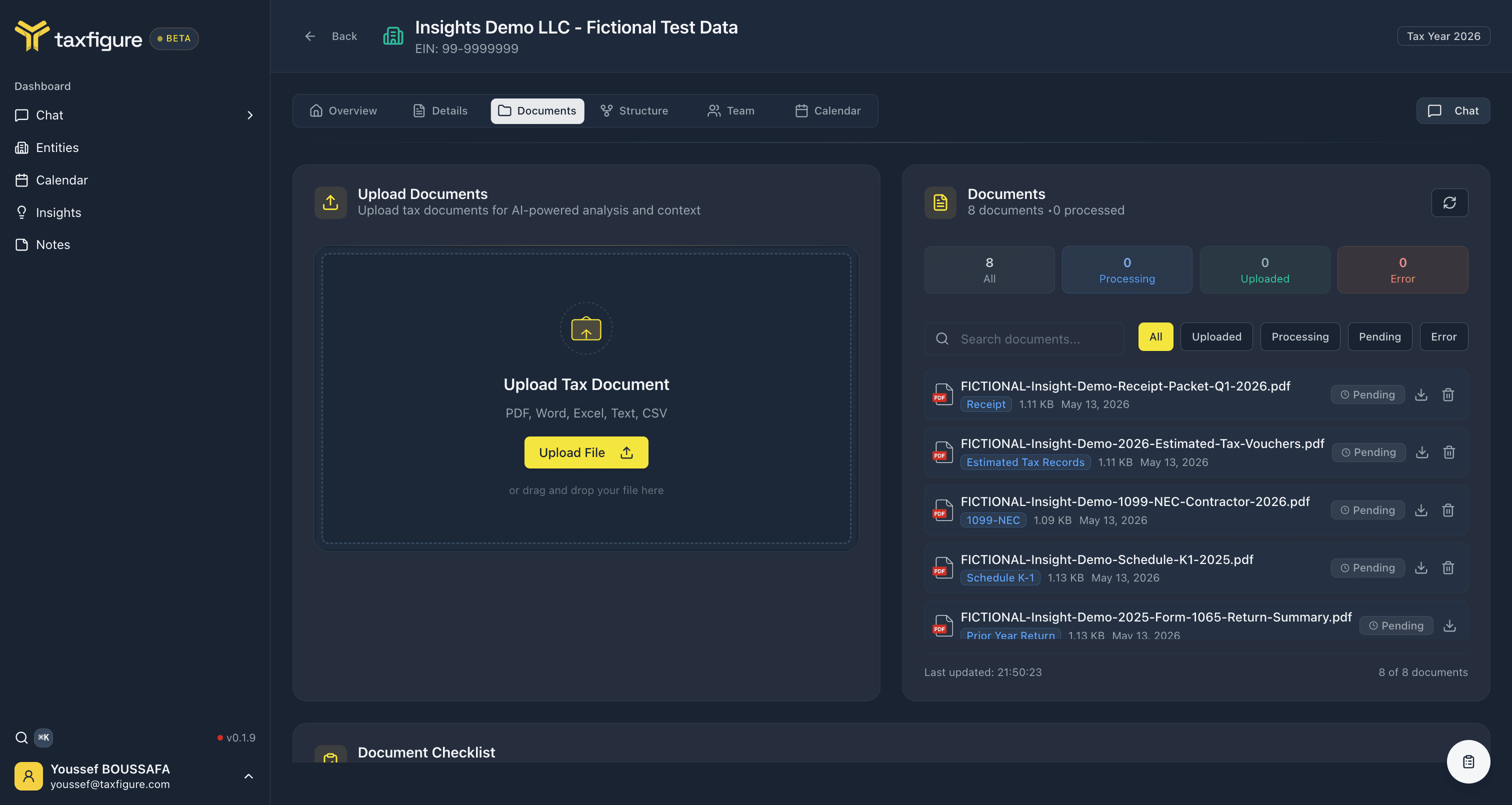
- From the entity workspace — open an entity and go to the Documents tab. Drag a file onto the upload area or click Upload File. Documents are automatically linked to that entity.
- From a chat — coming soon. The chat's Attach button is reserved for an upcoming release; until then, upload from the entity's Documents tab. See Attachments.
Supported formats
- Word (DOC, DOCX)
- Excel (XLS, XLSX)
- Text (TXT)
- CSV
What happens after upload
Each upload goes through a short pipeline, shown as a status badge on the document:
- Pending — file received, waiting to process.
- Processing — OCR (if needed), field extraction, and embedding.
- Uploaded — processed and ready to use in chat, insights, and the document checklist.
If a step fails, the document shows an Error badge instead. The Documents tab keeps a running tally at the top — All, Processing, Uploaded, and Error — plus a processed count in the panel header.
Search and filter
The Documents panel has a Search documents… box and a row of status filters — All, Uploaded, Processing, Pending, and Error — so you can find a specific file or triage anything that didn't process cleanly. Each document row also has buttons to download or delete the file.
The document checklist
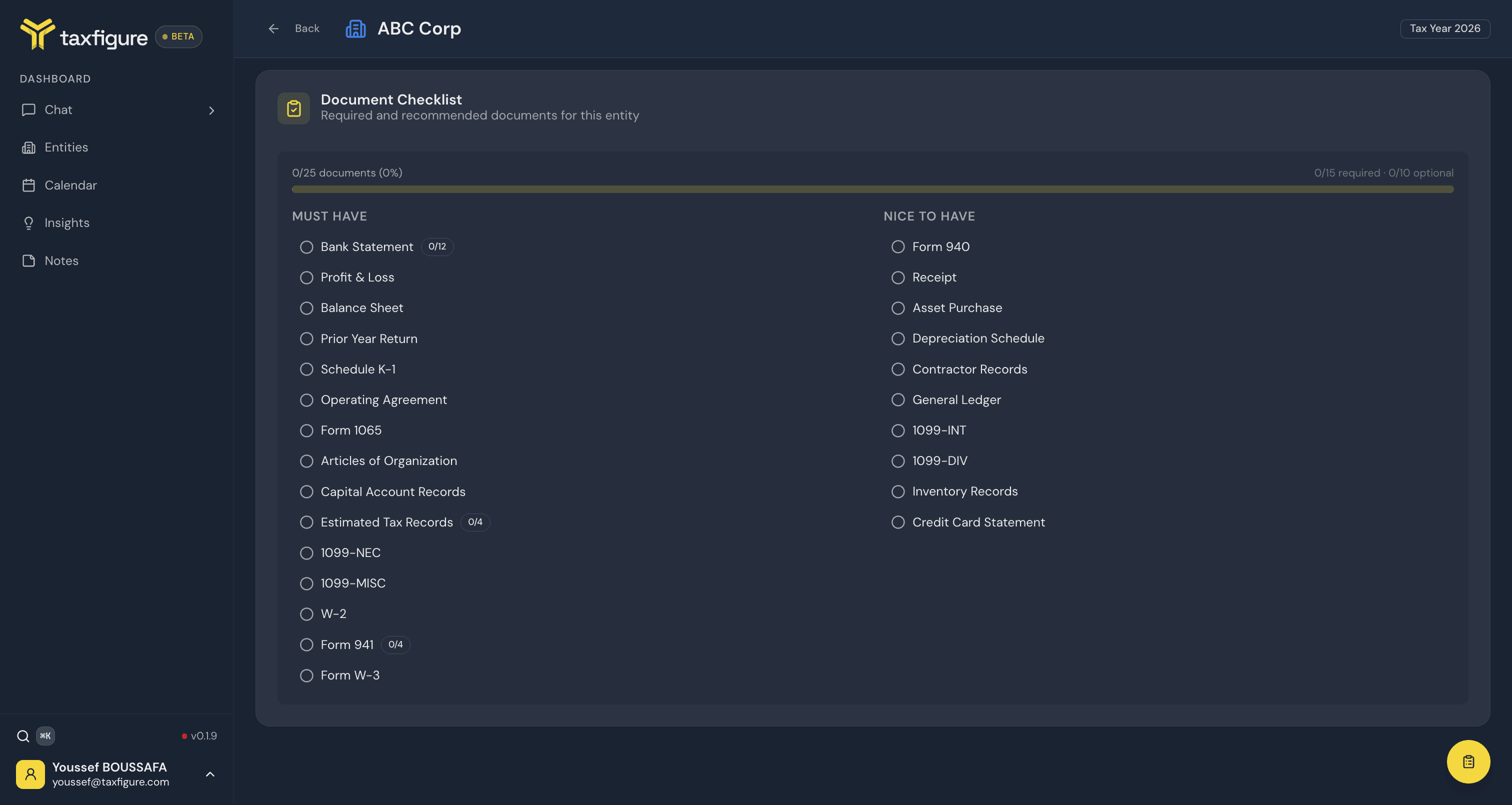
Every document is tagged with a type (shown as a badge on the row), and
the Document Checklist at the bottom of the tab reconciles what's been
uploaded against what the entity needs. It shows the required and
recommended documents for that entity type and highlights which ones are
still missing — split into Must have and Nice to have columns,
with a progress bar and per-type counts (e.g. 0/12 monthly bank
statements):
Errors
If a document fails to process, it shows an Error badge. Click the refresh icon on that document row to reprocess it — TaxFigure keeps the file in place and just retries the processing step. If a scan is unreadable or a PDF is password-protected, fix the file and re-upload.