
Share entities with teammates
Give other firm members access to a specific entity.
By default, an entity is private to the person who created it. To collaborate on an entity, share it explicitly with the teammates who need access.
Share an entity
- Open the entity workspace.
- Open the Team tab.
- Click Add Member.
- Search for a teammate and pick them from the list. Only active members of your firm can be added — see Invitations for adding new people to the firm.
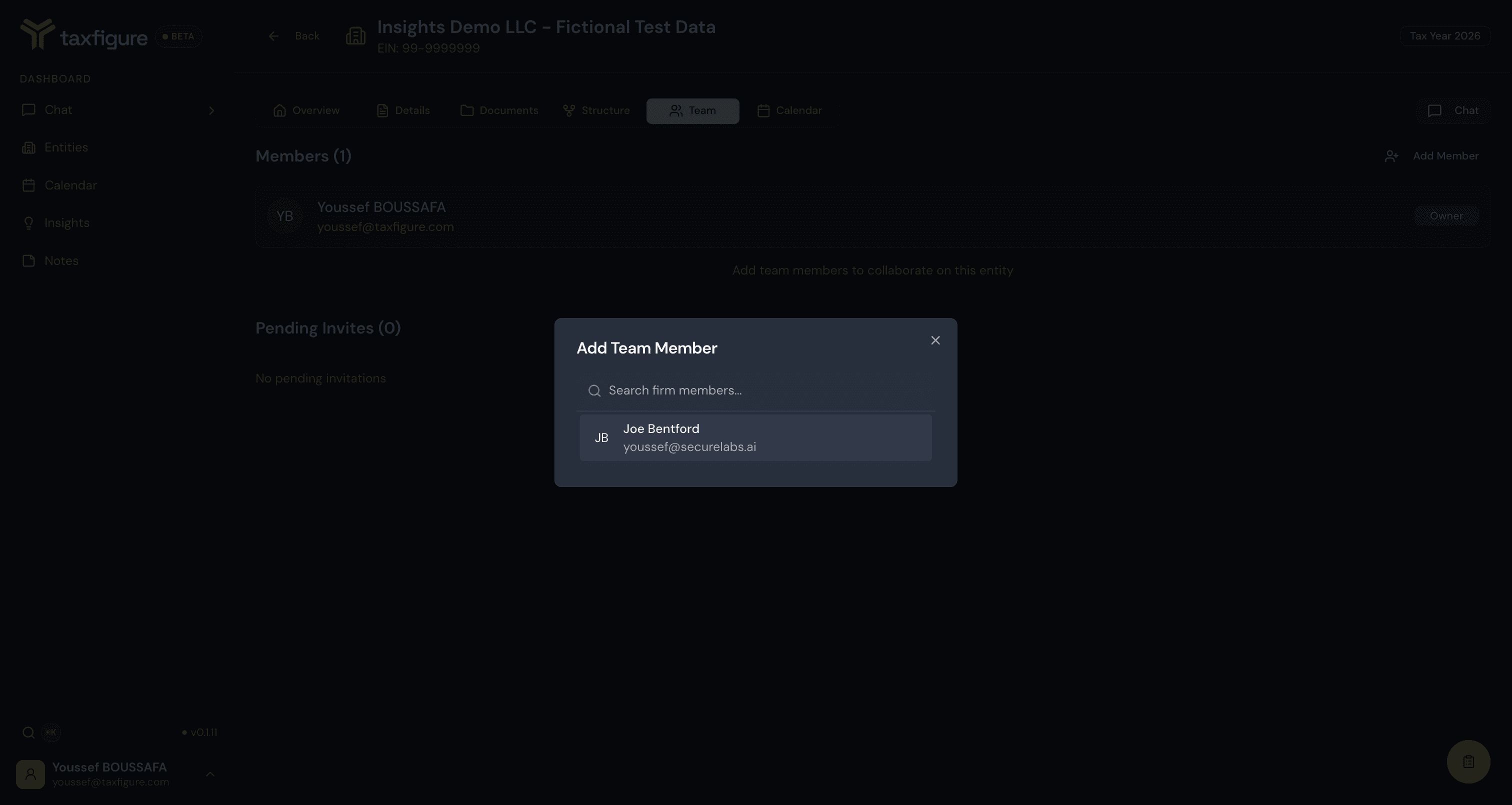
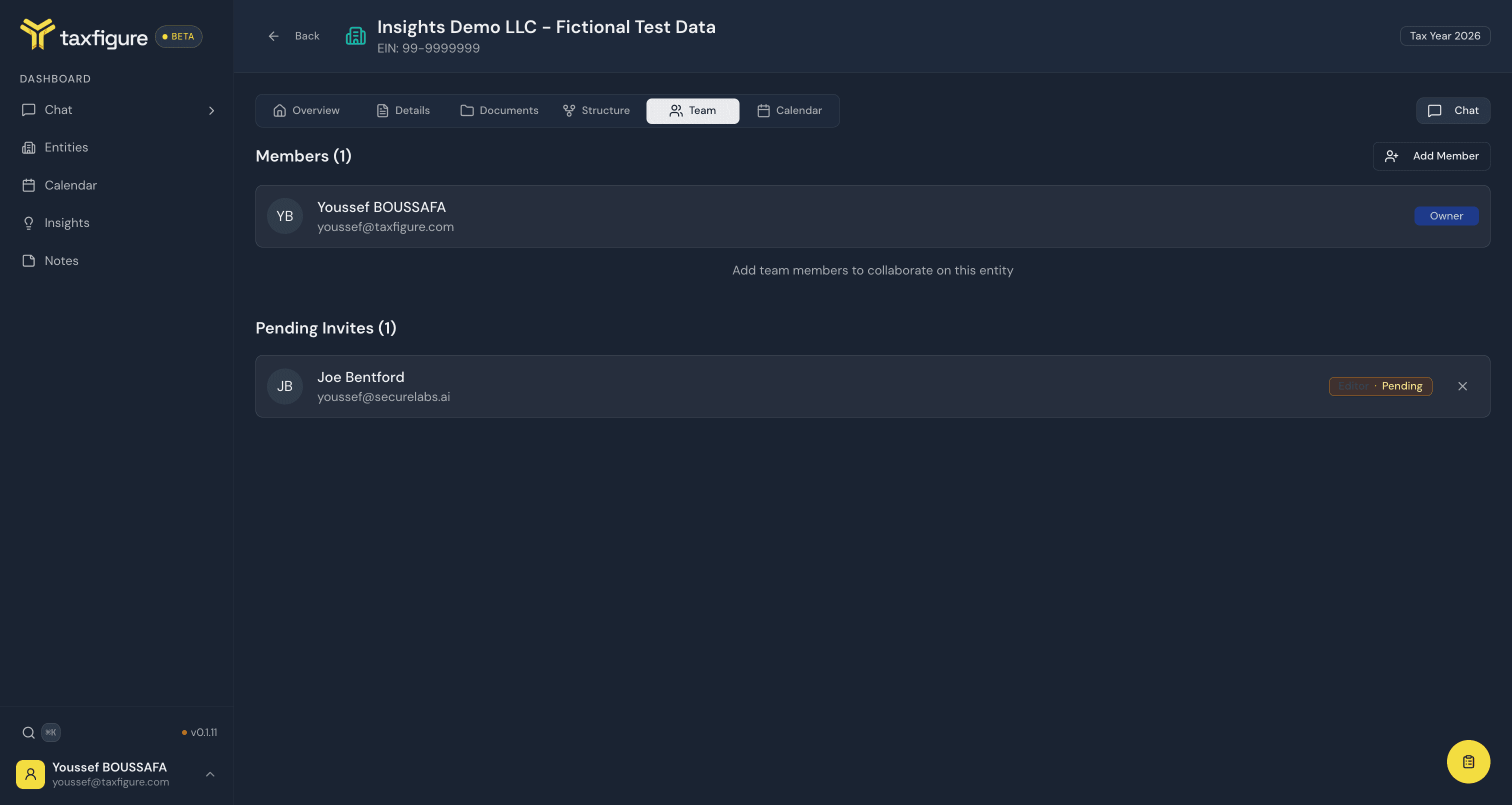
The teammate is invited to the entity as an Editor by default. They appear under Pending Invites on the Team tab until they accept. On their Entities page, the invite appears under Pending Invitations with Accept and Decline actions. Once they accept, the entity moves into their Shared With Me list.
Access levels
- Owner — full access, including the ability to share with others and delete the entity. The entity creator is the owner.
- Editor — can upload documents, edit the entity profile, and run chat. Teammates you add join with this level.
- Viewer — read-only access to the entity. Owners can change an existing collaborator from Editor to Viewer from the Team tab.
Cancel or remove access
From the entity's Team tab:
- Click the × next to a pending invite to cancel it — the invitation stops working.
- Remove an existing member from their row in the members list.
The teammate immediately loses access; the entity disappears from their Shared With Me list.
What gets shared
When you share an entity, the teammate sees:
- All documents attached to the entity.
- All insights generated for the entity.
- Chat conversations that include the entity in their context.
They do not see your other entities, your personal chats, or firm-wide settings.