
The entity workspace
Tabs and tools available inside a single entity.
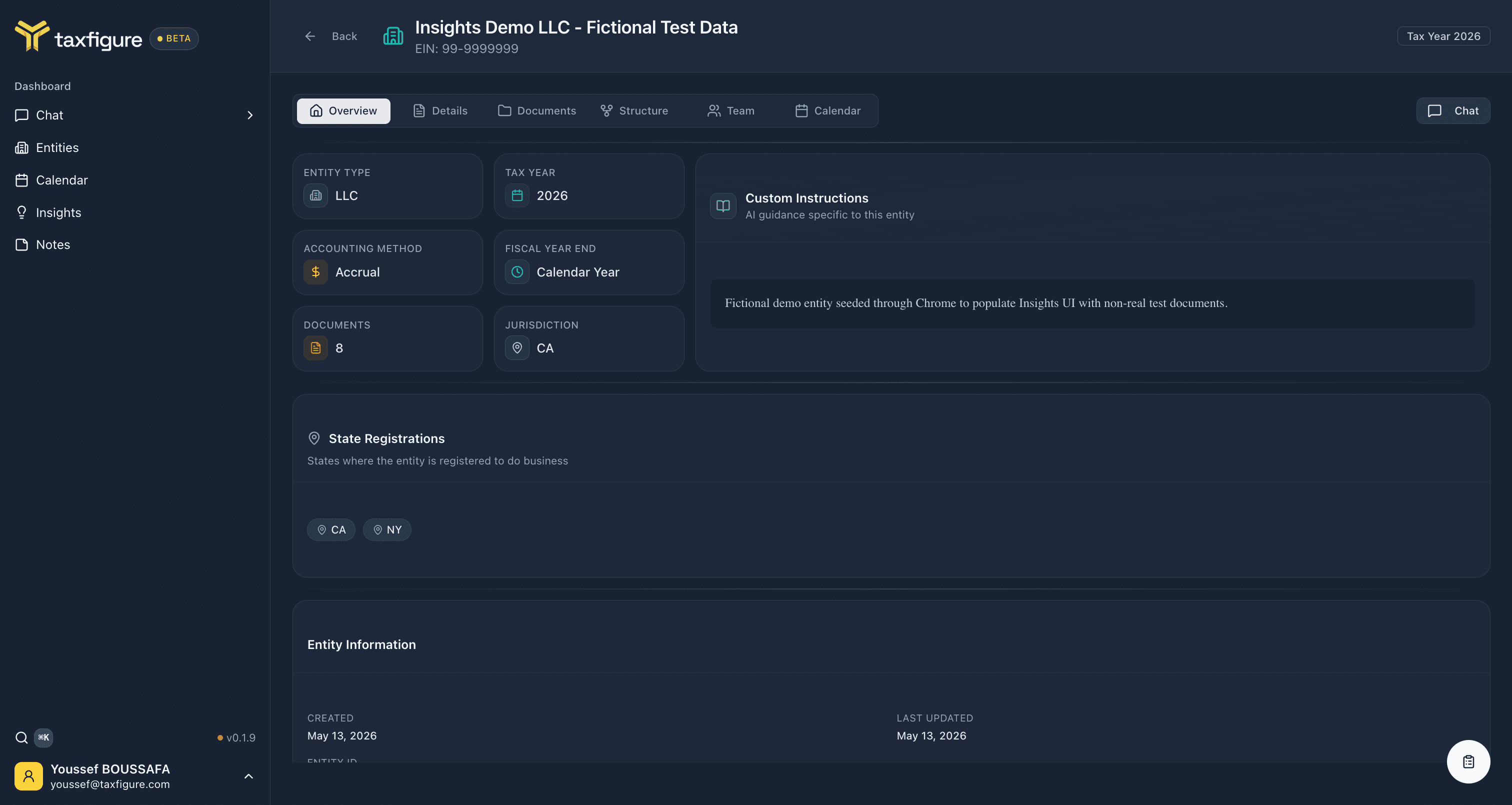
Clicking an entity opens its workspace. The workspace shows the entity's header (name, EIN, tax year) and a tabbed view of everything attached to that entity.
The header
The header always shows:
- Entity name and badge.
- EIN (if set).
- Tax year you're currently viewing.
Click Back in the top-left to return to the Entities list. Click Chat in the top-right to open a chat already scoped to this entity.
Tabs
Overview
A summary card with the entity's key facts: entity type, tax year, accounting method, fiscal year end, document count, jurisdiction, custom instructions, and state registrations.
Details
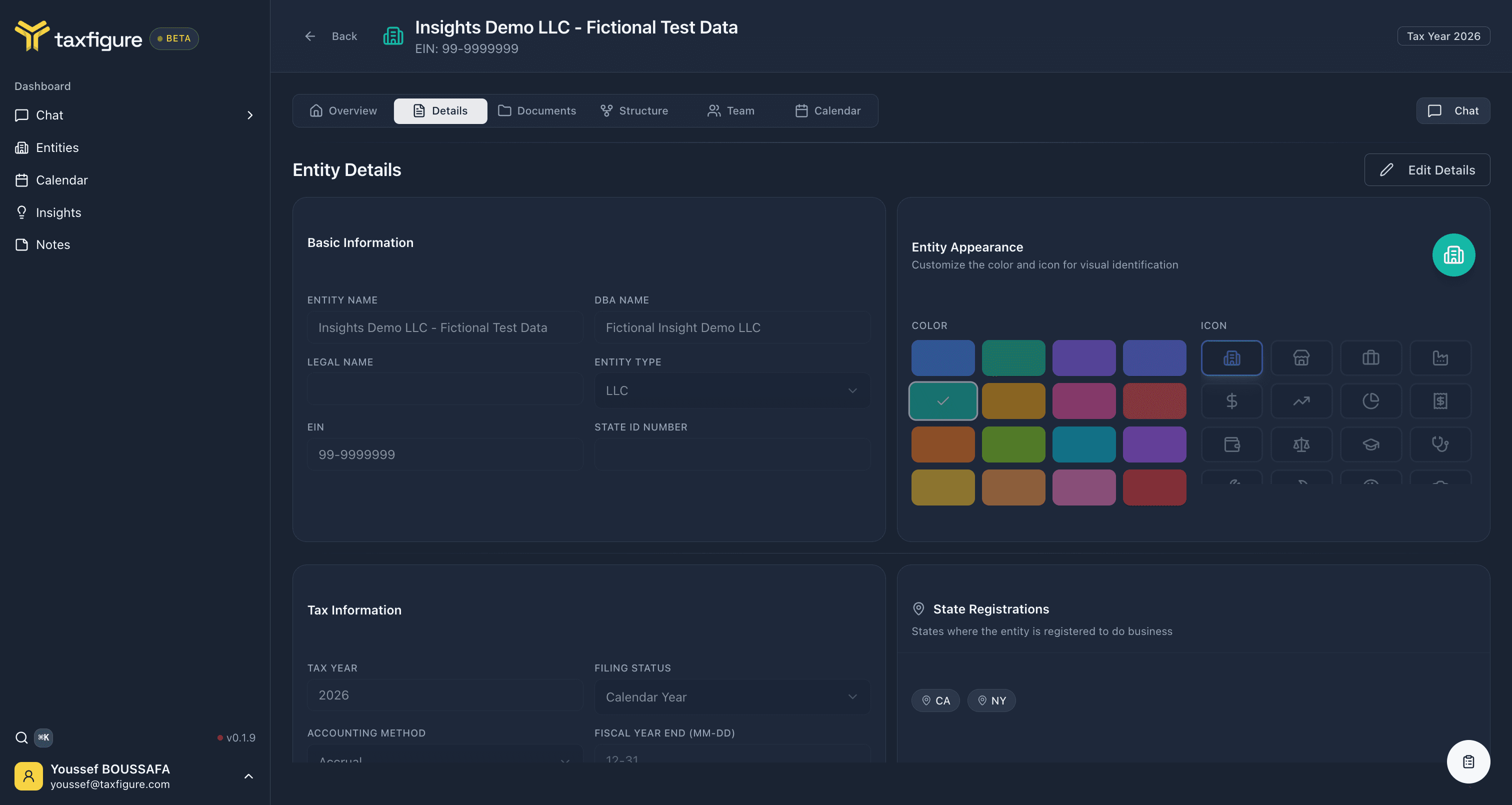
The full entity profile — editable. This is where you update legal name, EIN, jurisdiction, accounting method, state registrations, and the Custom Instructions that get passed to the AI whenever you chat in this entity's context.
Documents
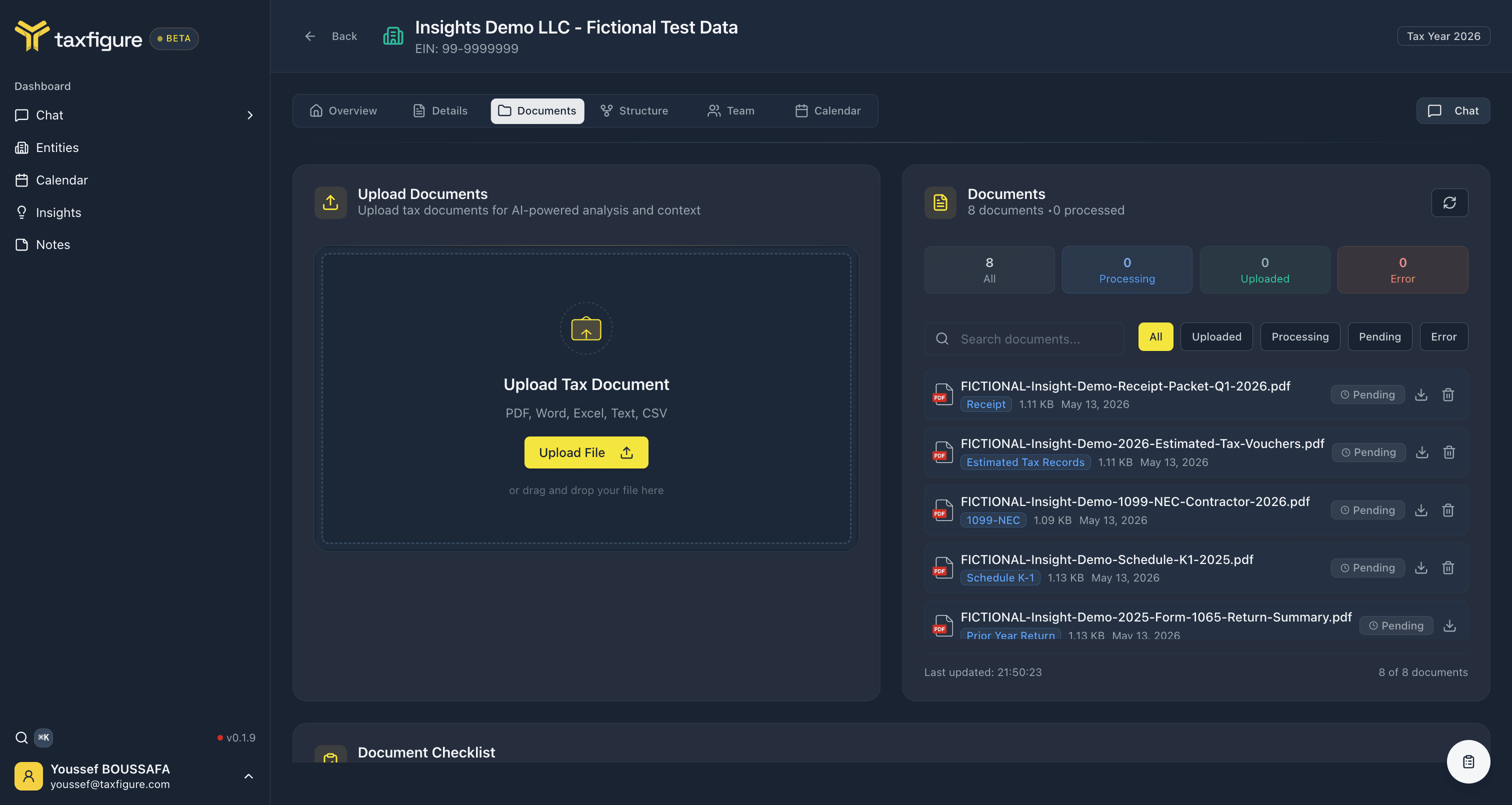
Drag-and-drop upload, search, and a document checklist showing which required documents have been provided for this entity. See Documents.
Structure
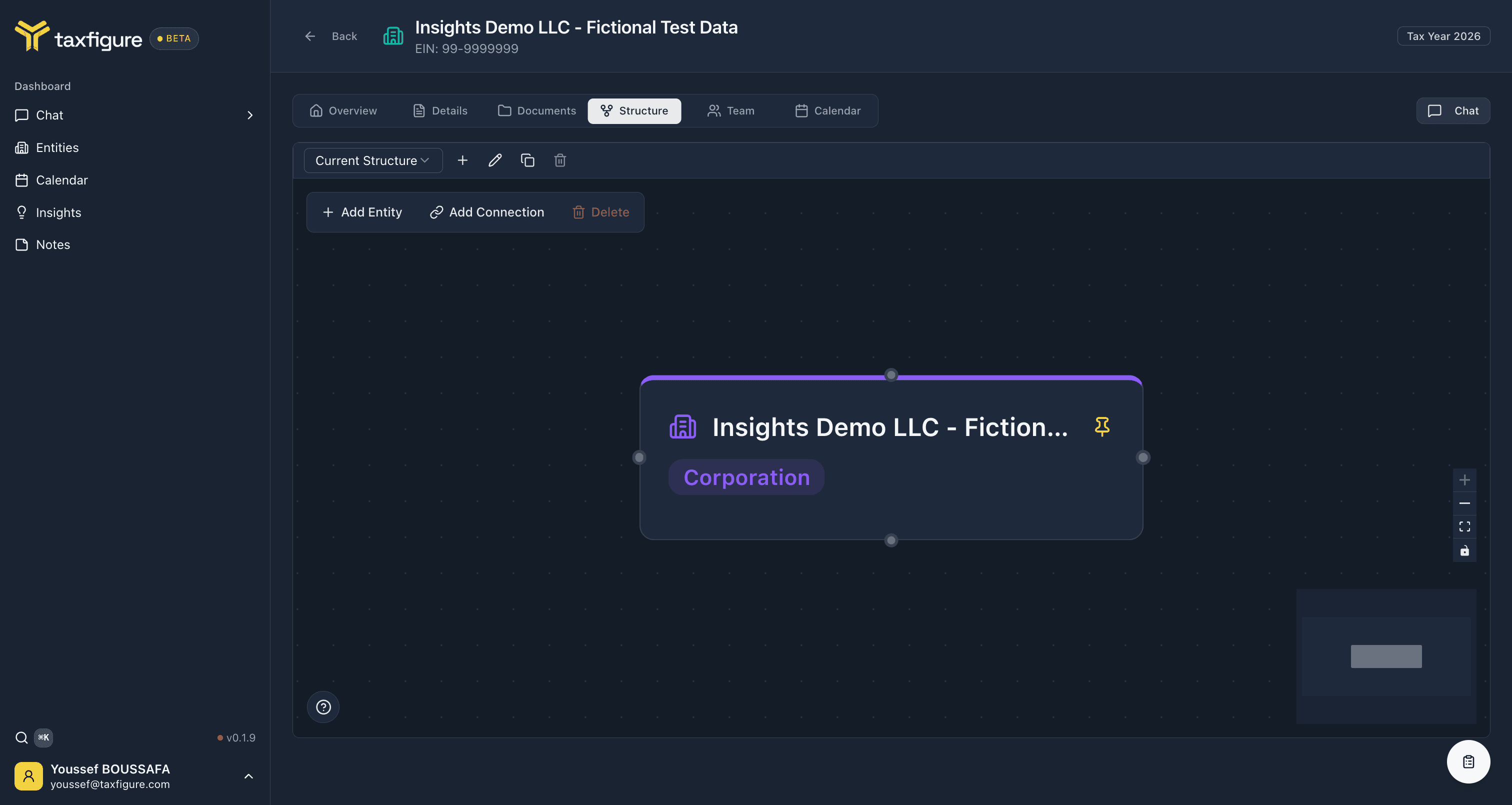
Captures relationships between entities (parent/subsidiary, K-1 flow-throughs, beneficial ownership). The tab renders the entity and its connections as a flow diagram you can pan and zoom. Use + Add Entity to add a related entity to the diagram and + Add Connection to draw a relationship between two nodes. The view-mode picker in the top-left switches between Current Structure and historical snapshots.
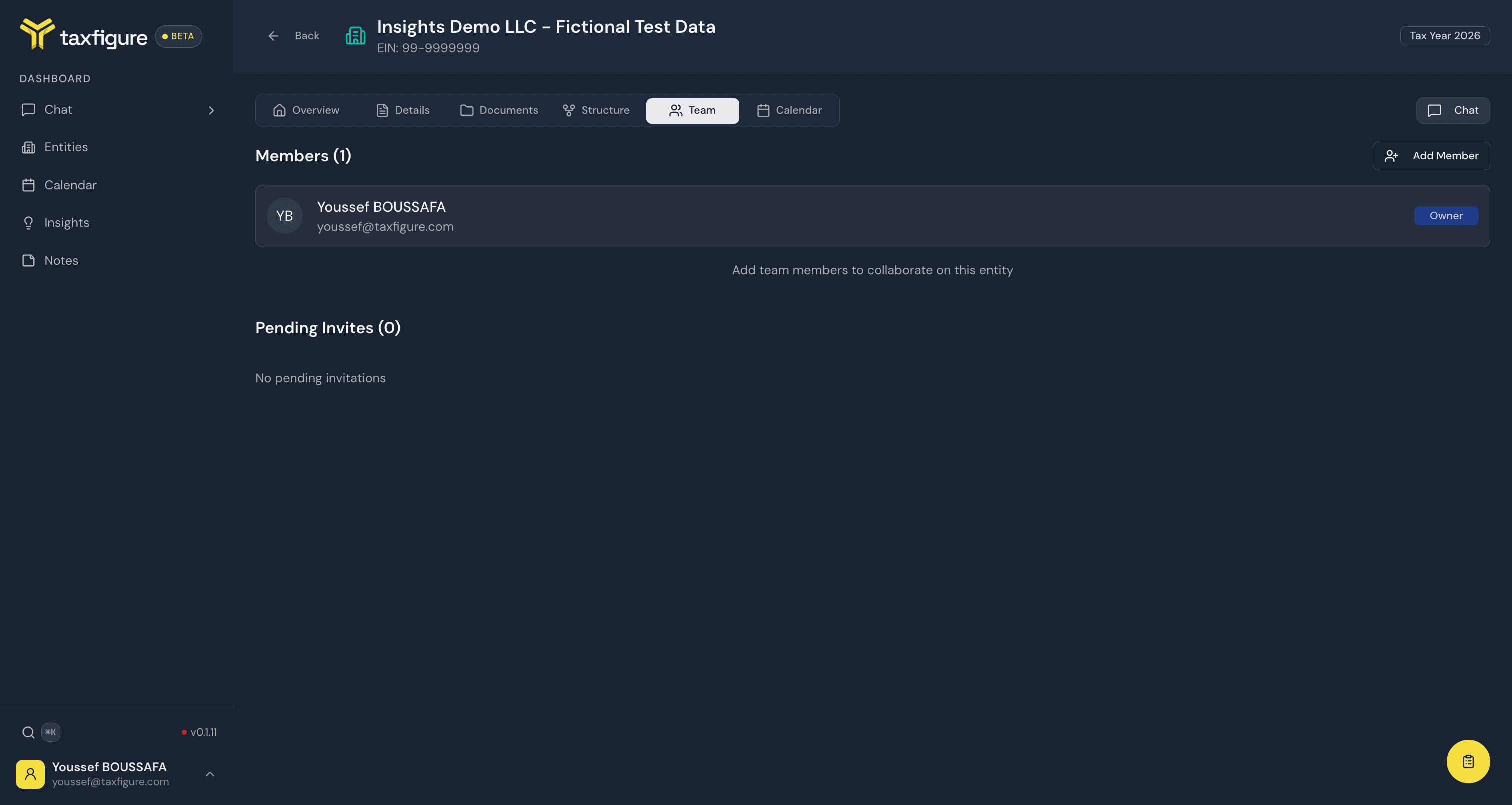
Team
Lists everyone with access to this entity, their role, and how they were granted access. Add or remove teammates from this tab. See Share with teammates.
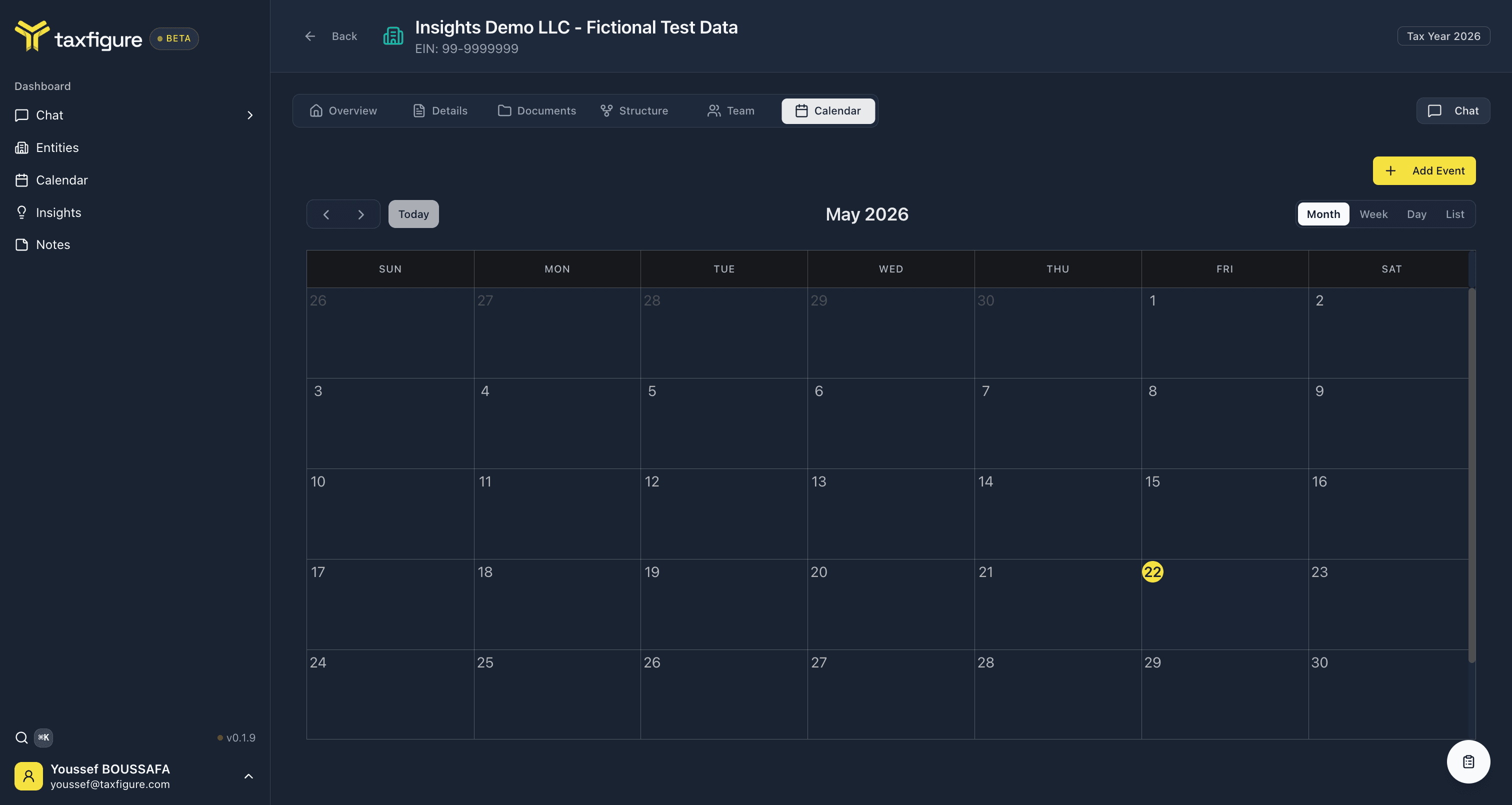
Calendar
The entity's deadlines and events. Same calendar UI as the global Calendar page — month / week / day / list views and an Add Event button — but scoped to this entity only. Anything you add here also appears in the global view.
Switching entities
Use the ⌘K quick switcher (top nav) to jump to any entity from anywhere in the app. Start typing the entity's name and select it from the list.