
Create a new entity
Add a client to TaxFigure with their basic tax profile.
To start working with a new client, create an entity for them. The entity becomes the home for all of that client's documents, insights, and chat context.
Create an entity
- Open Entities from the sidebar.
- Click + New Entity in the top right.
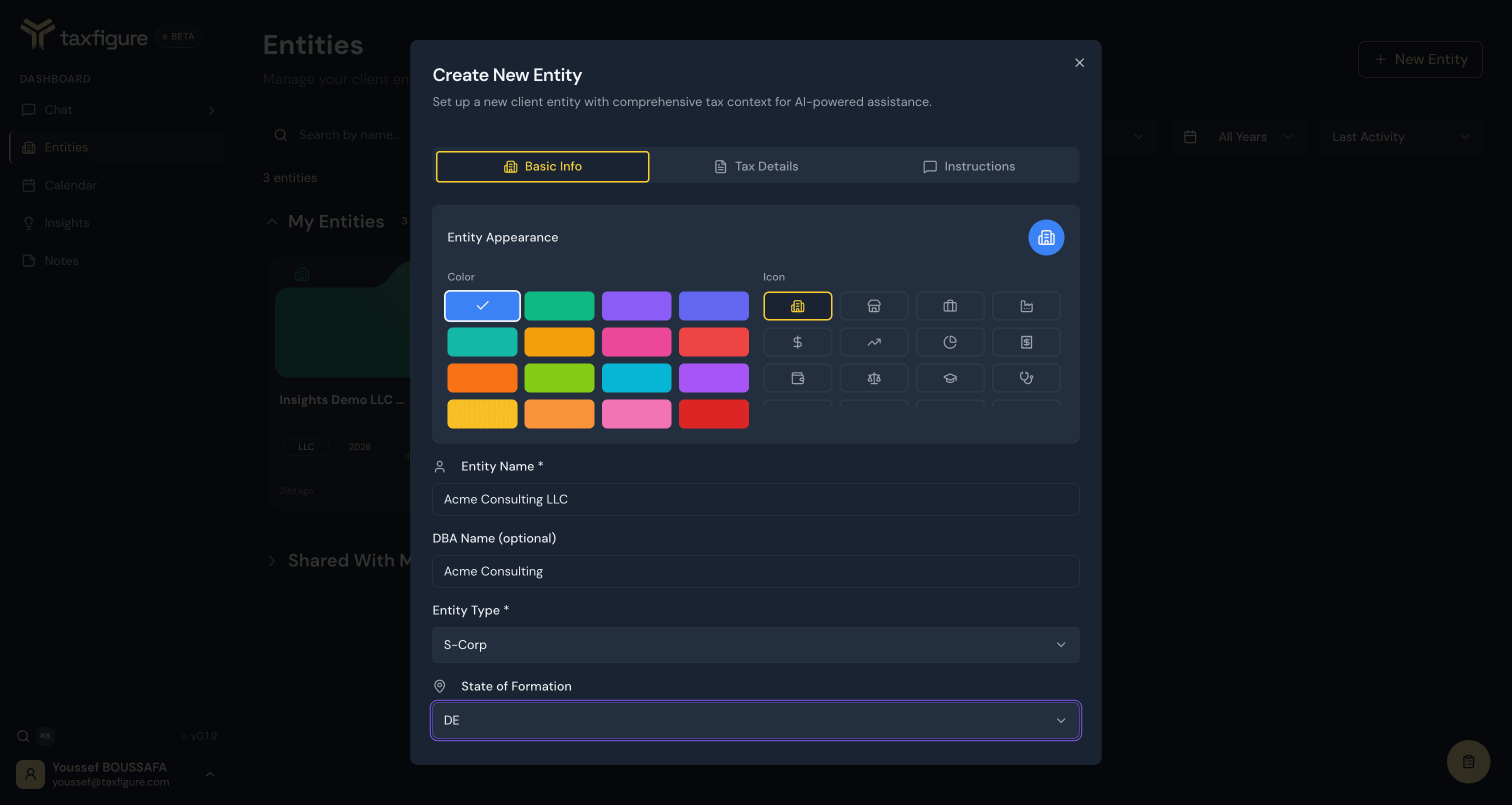
- Fill in the Basic Info tab:
- Entity appearance — a color and icon to identify the entity across the workspace.
- Entity name — usually the legal entity name.
- DBA name (optional) — the "doing business as" name.
- Entity type — LLC, S-corp, Corporation, Partnership, Sole Proprietorship, or Non-Profit. Some downstream behavior depends on this (e.g. which documents are required, which deductions are surfaced).
- State of formation — the state where the entity was formed.
- Optionally fill in the Tax Details tab — tax year, filing status, primary tax jurisdiction, accounting method, industry code, and the states where the entity has tax nexus or registration.
- Click Create Entity.
You'll land in the new entity's workspace.
Custom instructions
The Instructions tab holds custom instructions — free-text guidance that's passed to the AI whenever you chat in this entity's context. Use it for client-specific facts the AI should always remember:
- "Conservative approach to deductions, client prefers lower audit risk."
- "Focus on R&D tax credits and Section 174 capitalization."
- "Multi-state nexus with CA, TX, and NY operations."
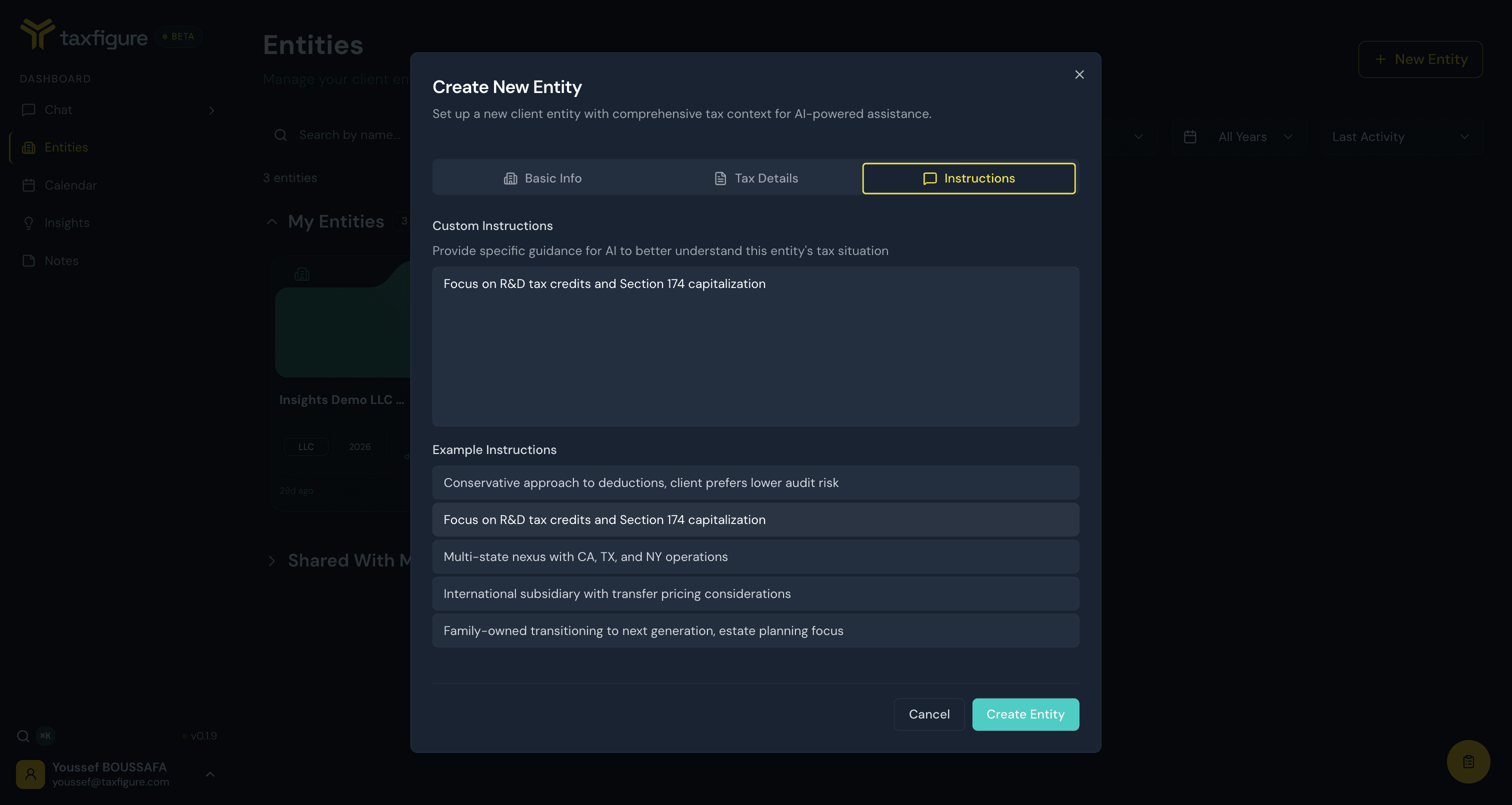
You can set instructions when creating the entity or edit them later from the entity's Details tab.
Edit or delete an entity
From the Entities list, click the ⋯ menu on any entity card to:
- Edit — change name, type, year, or jurisdiction.
- Share — see Share with teammates.
- Archive — hide the entity without deleting its data.
- Delete — permanently remove the entity and all its data. This action cannot be undone.