
Invitations
Invite teammates to join your firm in TaxFigure.
Administrators add new users to a firm by inviting them by email.
Invite a teammate
- Open Settings → Team Management (avatar menu, bottom-left).
- Click Invite user.
- Enter their email address.
- Pick a role — Admin or CPA User (see Roles & permissions).
- Click Generate Invite.
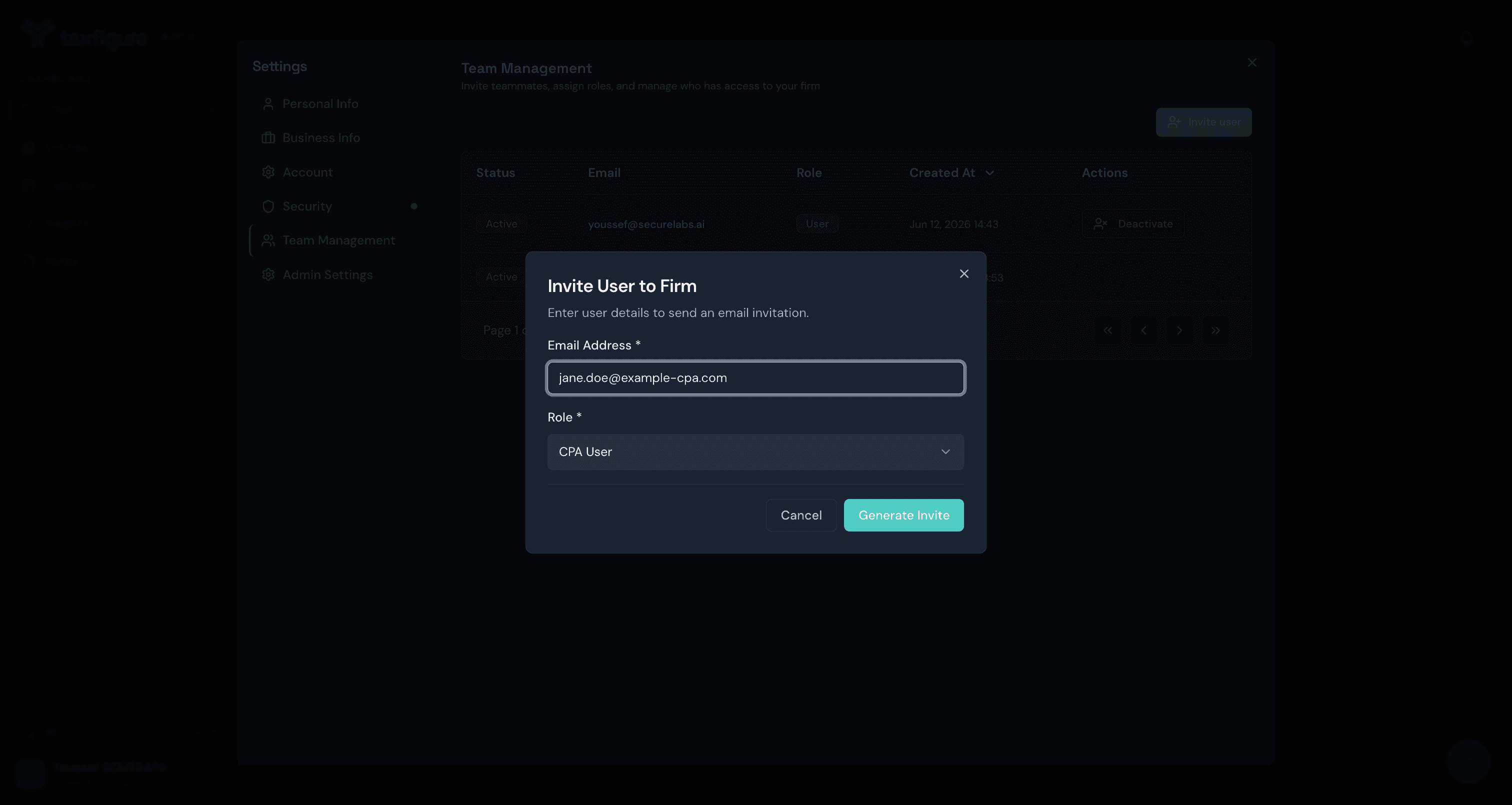
TaxFigure emails the invitee a sign-up link. Once they accept, they set a password, complete their profile, and join your firm with the role you chose.
Pending invitations
The Team Members table lists every user along with their status. Invitees show as Pending until they accept; from their row you can Resend Invite to generate a fresh email.
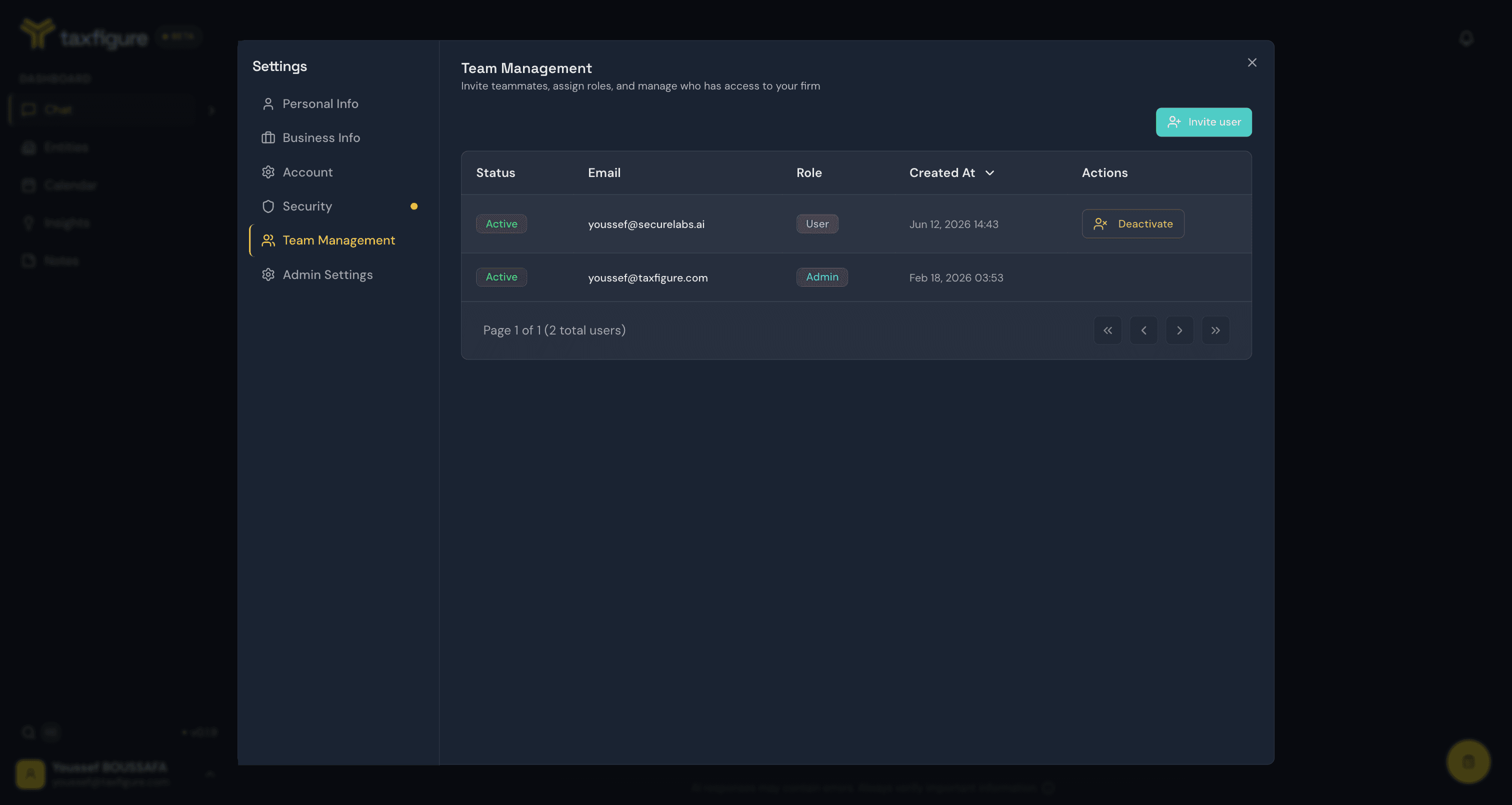
Invitations expire after a fixed window for security. If yours expires before the recipient accepts, just resend — a fresh link is generated.
Manage existing members
From the same Team Members table, administrators can manage user roles and activate or deactivate team members. Deactivated users immediately lose access to the firm's workspace.
The invitee never got the email
Check their spam or junk folder first. If it's not there:
- Confirm the invite went to the right email address.
- Use Resend Invite on their row in the Team Members table.