
Sign in
How to sign in to TaxFigure with email and password or a single sign-on provider.
TaxFigure lives at app.taxfigure.com. You can sign in three ways: email and password, Google, or Microsoft.
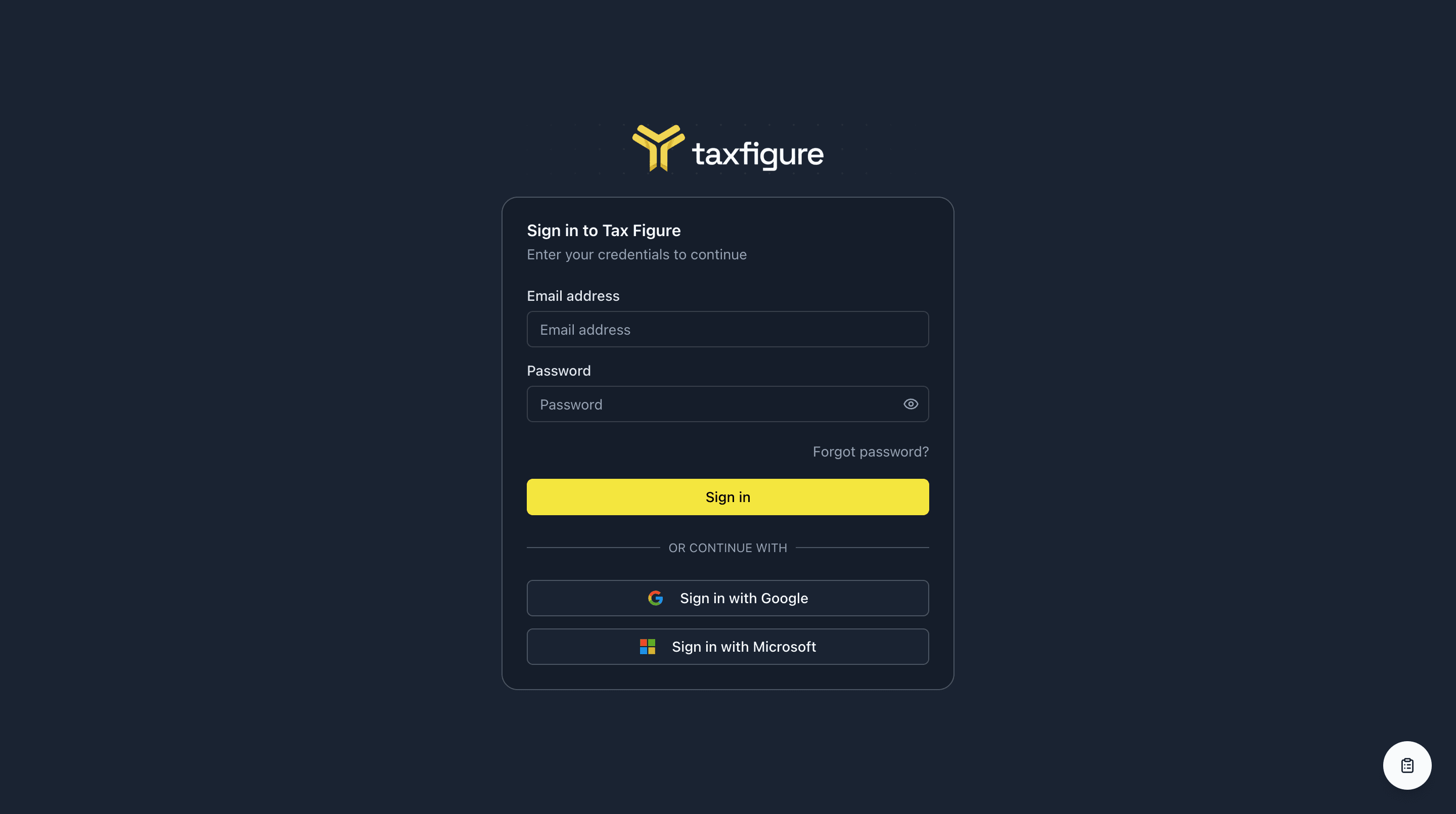
Sign in with email and password
- Open app.taxfigure.com.
- Enter your email address and password.
- Click Sign in.
If multi-factor authentication is enabled on your account, you'll be asked for a six-digit code from your authenticator app. See MFA.
Sign in with Google or Microsoft
If your firm uses Google Workspace or Microsoft 365, you can skip the password step entirely:
- Click Sign in with Google or Sign in with Microsoft on the sign-in screen.
- Approve the sign-in prompt in your provider's pop-up.
The first time you use SSO, TaxFigure will create a session tied to your email address. Subsequent sign-ins are one click.
Forgot your password
- Click Forgot password? under the password field.
- Enter the email address on your TaxFigure account and click Send reset link.
- Open the reset email and click the link.
- Choose a new password.

Reset links expire after a short window. If yours has expired, request a new one from the same page.
Trouble signing in
- Wrong email or password — Confirm the address you used at sign-up. Email is case-insensitive but typos are common.
- MFA code rejected — Make sure your device's clock is synced automatically. TOTP codes are time-based.
- Invitation expired — Ask the firm administrator who invited you to re-send the invite. See Join an existing firm.
If you're still stuck, click the feedback button (bottom-right of the sign-in page) or email your firm administrator.