
First-run onboarding
Accept an invitation, create your account, answer the optional survey, and complete your profile.
Onboarding starts the first time you open TaxFigure from an invitation or new account setup link. It creates your account, collects a few optional preferences, and finishes with your profile details.
Accept the invitation
If your firm invited you, open the invitation link and click Accept Invitation.

The invitation is a secure one-time link. If it has expired, ask the firm administrator who invited you to send a new invitation. See Join an existing firm.
Create your account
Next, confirm your name and email, then choose a password.
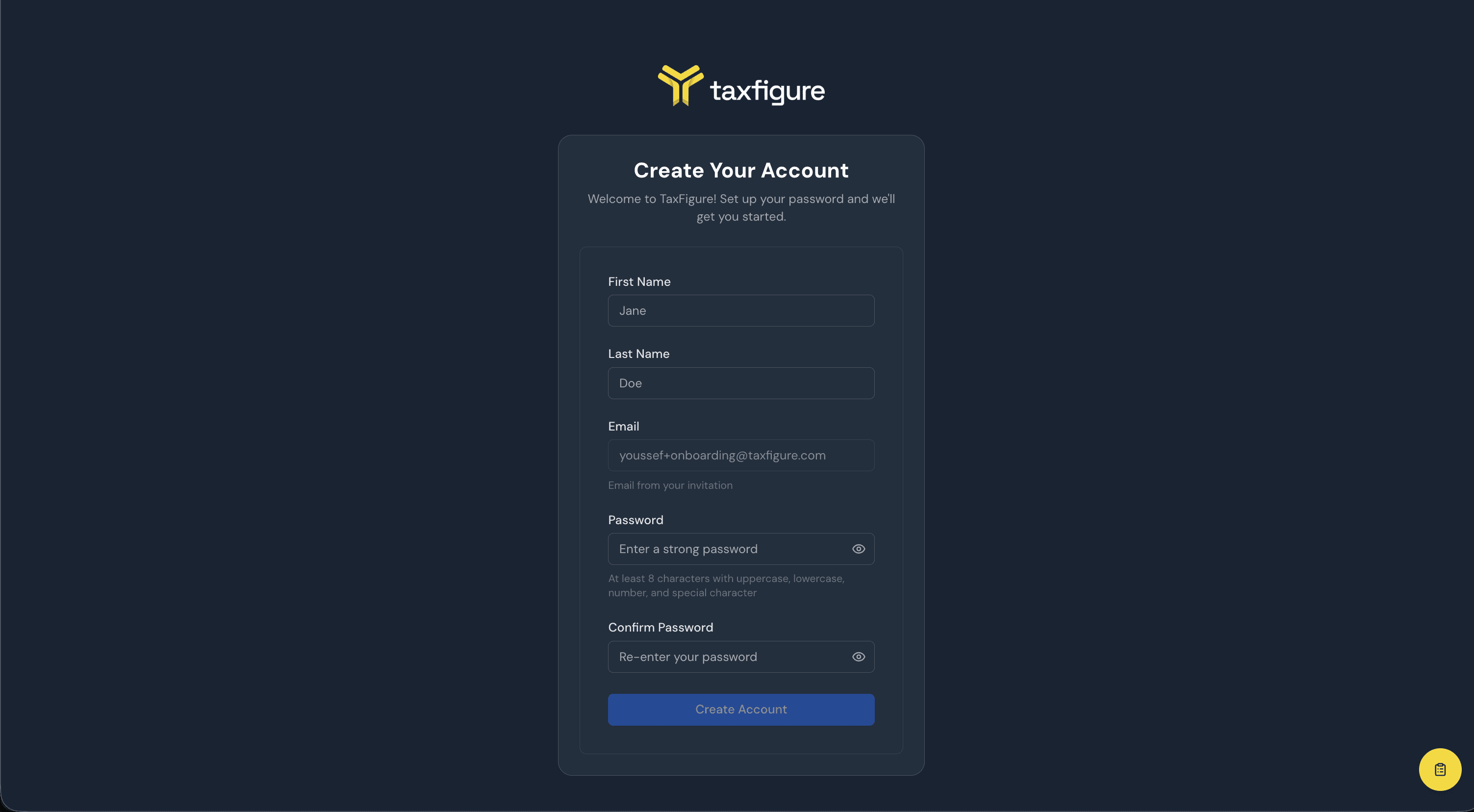
The email comes from the invitation and cannot be changed during account creation. Your password must meet the strength requirements shown under the password field.
Quick survey
TaxFigure may ask a short, optional survey about how you use AI for tax work.
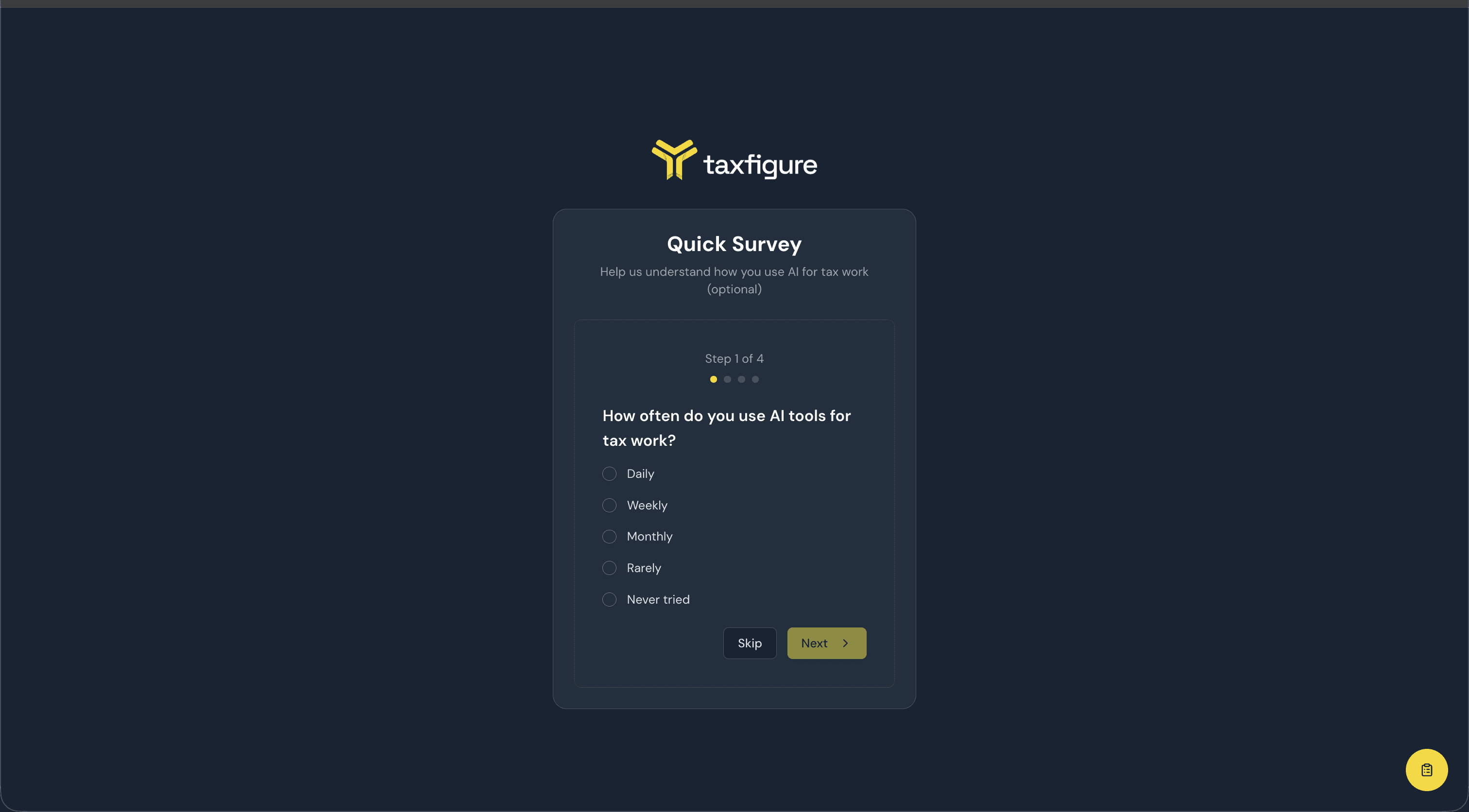
You can answer each step or click Skip. The survey helps personalize the product experience, but it is not required to finish onboarding.
Personal profile setup
Complete your profile before entering the app.
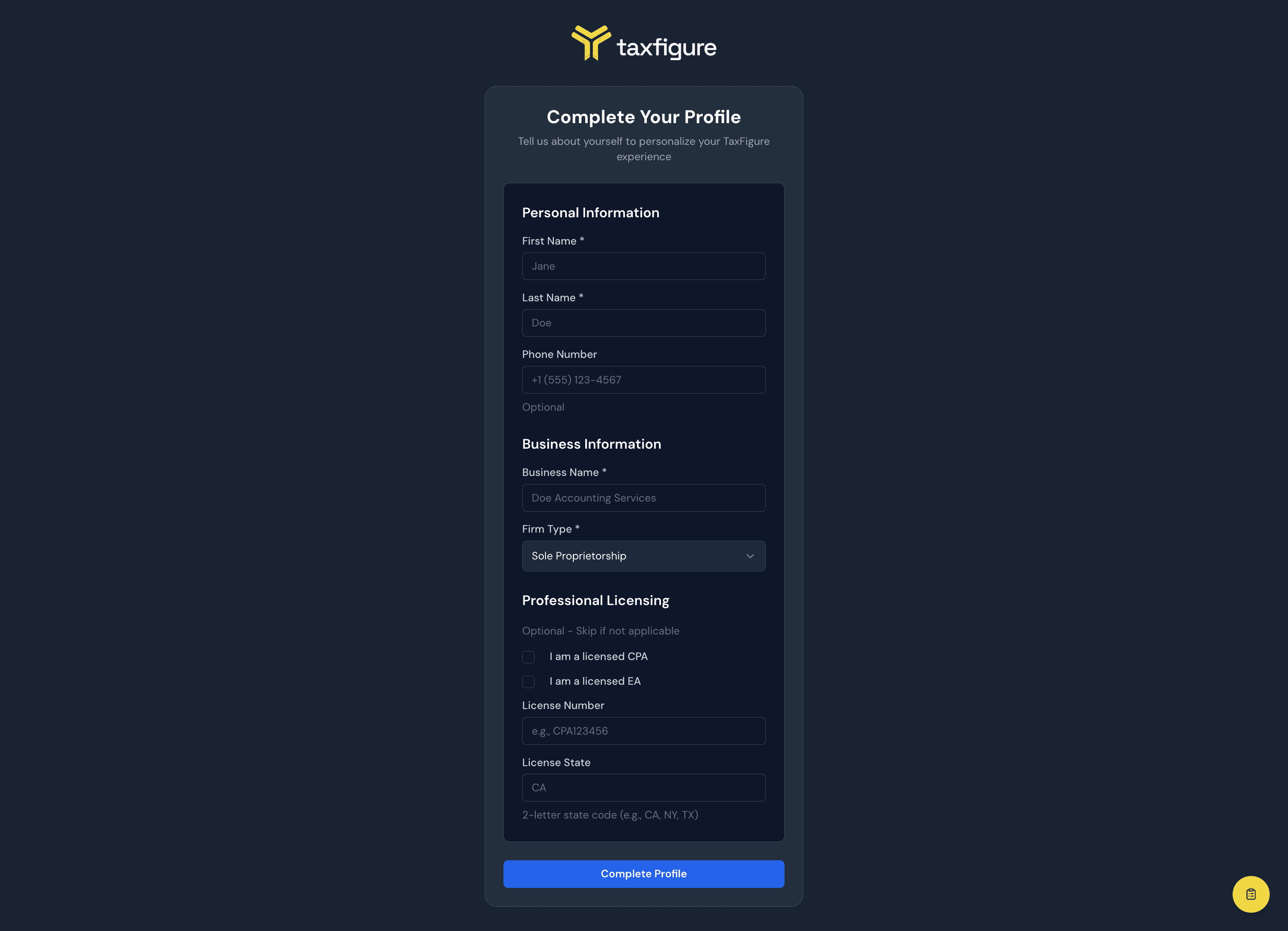
The profile form includes:
- Personal information — first name, last name, and optional phone number.
- Business information — business name and firm type.
- Professional licensing — optional CPA or EA status, license number, and license state.
Click Complete Profile when the required fields are filled in.
What happens next
After onboarding, TaxFigure opens your workspace. Your typical next steps are:
- Add your first entity (client).
- Upload source documents.
- Ask the AI a question from AI Chat.
You may also see an optional in-app product tour after your profile is complete. The tour walks through chat, entities, documents, structure, entity context, and feedback. You can start it, skip it, resume saved progress, or restart it later from the avatar menu.
You can update profile and account details later from Account & security.