
Multi-factor authentication
Enroll a TOTP authenticator, remember trusted devices, and recover by email if you lose your authenticator.
Multi-factor authentication (MFA — shown in the app as 2FA) adds a second step to sign-in: after your password, TaxFigure asks for a six-digit code generated by an authenticator app on your phone or in your password manager.
TaxFigure handles sensitive client tax data, so we strongly recommend enabling 2FA. If you haven't set it up yet, TaxFigure takes you to the setup page each time you sign in (you can skip it), and shows a reminder banner in the app.

What you need
Any TOTP-compatible authenticator app, for example:
- Google Authenticator
- 1Password (built-in TOTP)
- Authy
- Microsoft Authenticator
Enable 2FA
There are two ways to reach setup: sign in without 2FA and TaxFigure opens the setup page for you, or go to Settings → Security (avatar menu, bottom-left) and click Enable 2FA.
- Scan the QR code with your authenticator app, or copy the secret key and paste it into the app manually.
- Enter the six-digit code your app generates.
- Click Verify & Enable.
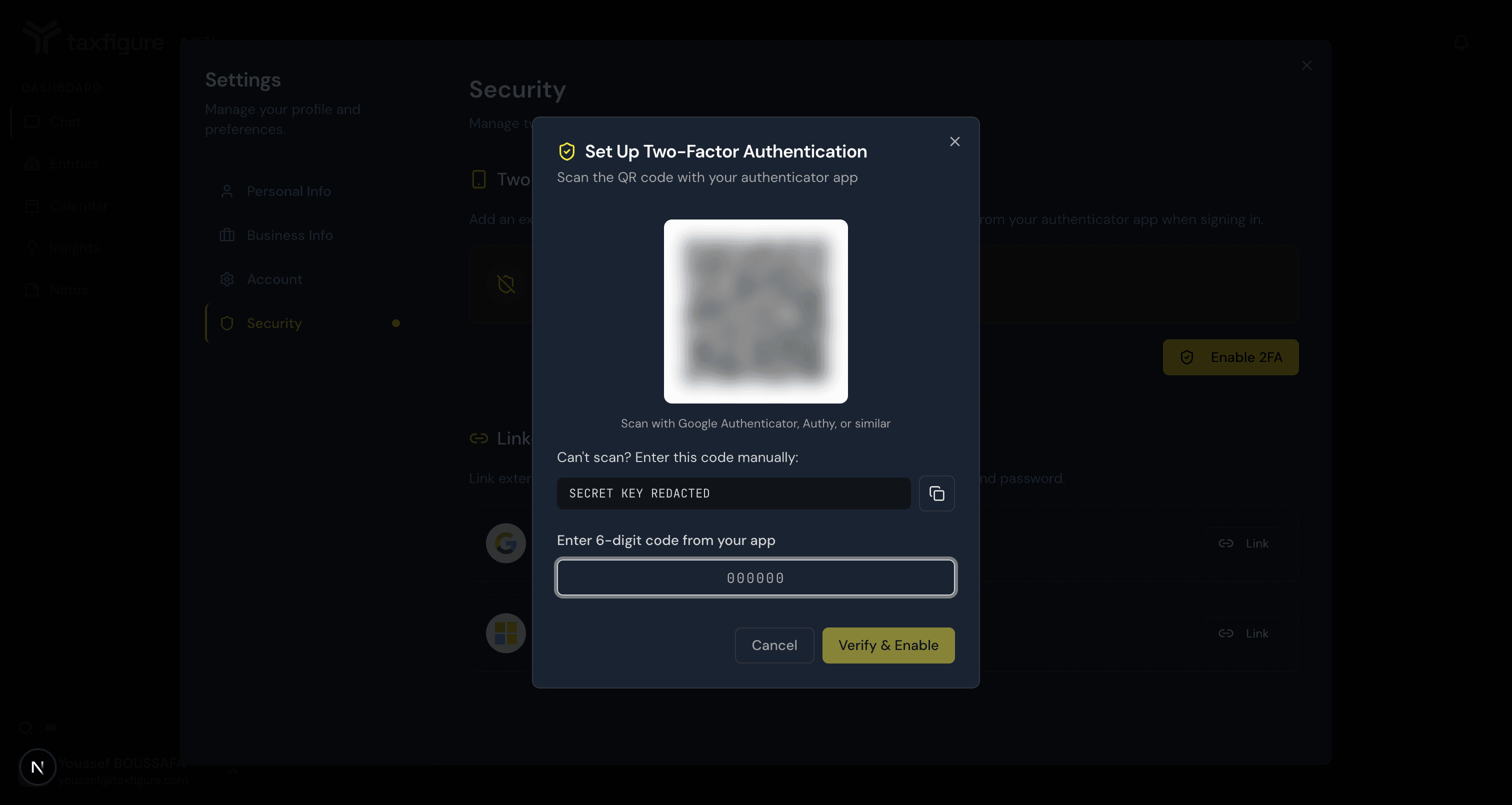
Once it's on, the Security tab shows 2FA is enabled along with a Disable 2FA button.
Sign in with 2FA
After 2FA is enrolled, sign-in becomes a two-step flow:
- Enter your email and password as usual.
- On the next screen, enter the six-digit code from your authenticator app and click Verify.
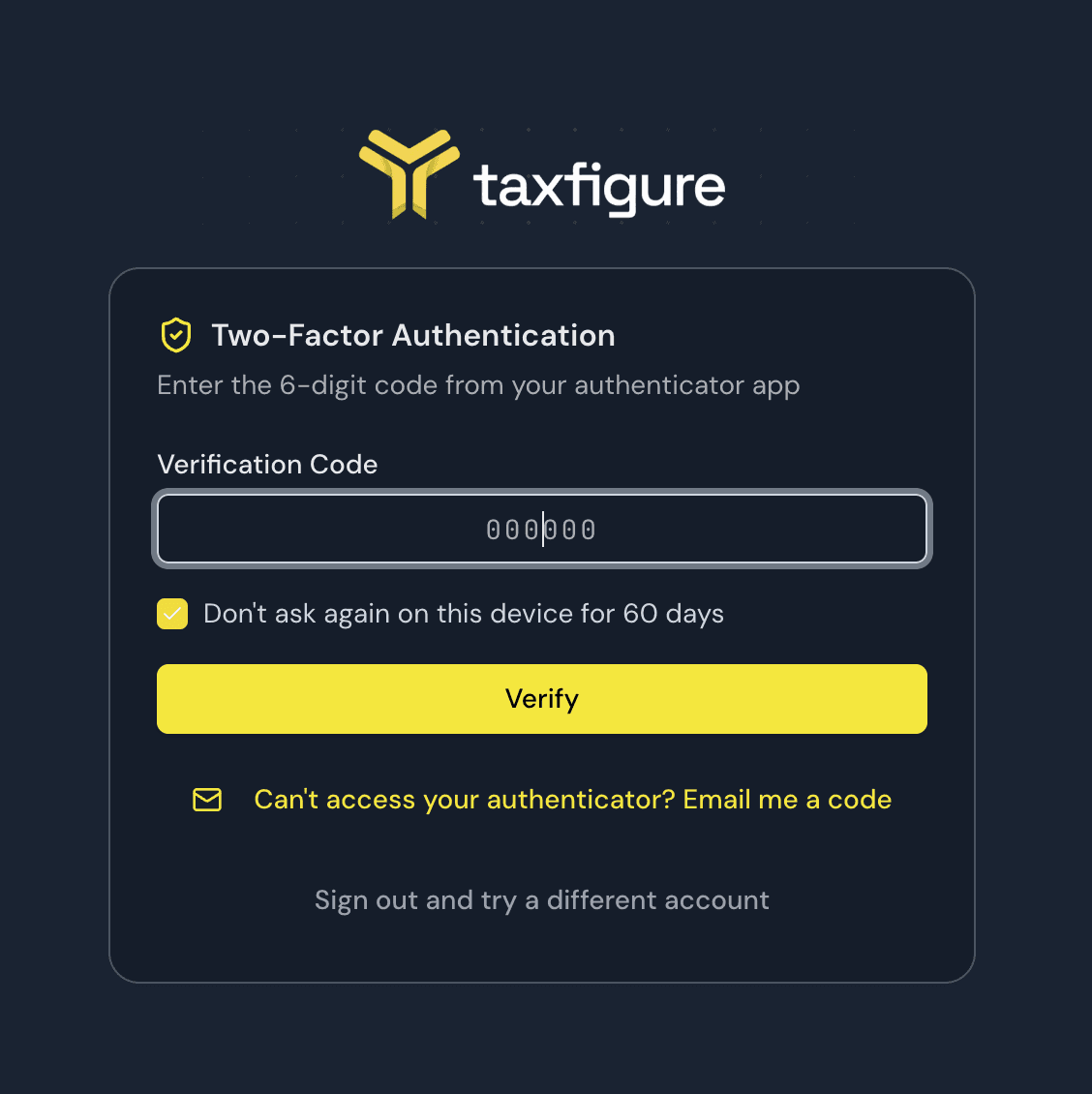
Leave "Don't ask again on this device for 60 days" checked and TaxFigure remembers the browser you're on — your next sign-ins skip the code entirely until the 60 days pass or you remove the device (see below). Uncheck it on shared or public computers.
If you enter the wrong code several times in a row, you're signed out and have to start the sign-in again — a safeguard against guessing.
Trusted devices
Devices you chose to remember are listed under Settings → Security → Trusted Devices, with when each was last used and when it expires.

- Click Remove next to any device you no longer use or don't recognize — it will ask for a verification code at its next sign-in.
- All trusted devices are removed automatically when you change your password, disable 2FA, or reset your authenticator.
Can't access your authenticator?
If your phone isn't at hand — or you deleted the authenticator entry — click "Can't access your authenticator? Email me a code" on the verification screen. TaxFigure emails a six-digit code to your account address; it's valid for 10 minutes.
After verifying the emailed code you can either:
- Continue to dashboard — use this when you still have your authenticator and just couldn't reach it, or
- Reset and set up a new one — use this if you lost the authenticator. Your old authenticator entry is removed, all trusted devices are cleared, and you're taken straight to setup to scan a fresh QR code.
So losing your authenticator no longer locks you out and doesn't require an administrator — as long as you can read your email. If you've also lost access to your email, contact your firm administrator or TaxFigure support. If your firm uses single sign-on, signing in with Google or Microsoft (if linked to your account) is another way back in. See Team & firm admin for who to ask.
Disable 2FA
- Open Settings → Security.
- Click Disable 2FA.
- Enter a current six-digit code from your authenticator to confirm.
Disabling 2FA also removes all your trusted devices. Your account is less secure without 2FA, so only turn it off if you're moving to a new authenticator — then re-enable it right away.