
Security
Two-factor authentication and linked sign-in providers.
The Security tab in Settings is where you configure two-factor authentication and connect external sign-in providers (Google, Microsoft).
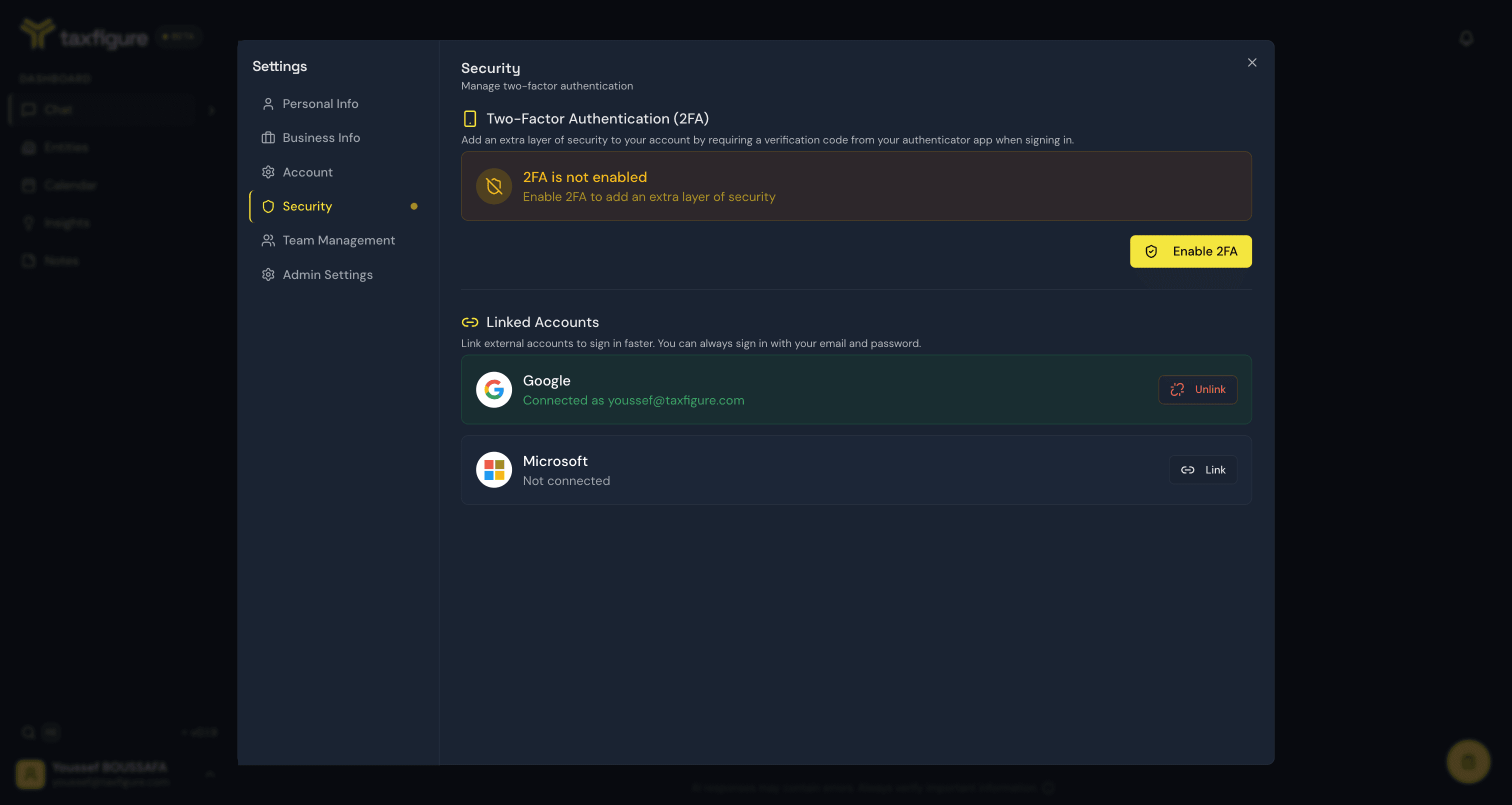
Two-factor authentication (2FA)
TaxFigure supports TOTP-based 2FA — the same standard as Google Authenticator, 1Password, Authy, and Microsoft Authenticator.
For full enrollment instructions and how to use backup codes, see Multi-factor authentication.
From this tab you can:
- Enable 2FA — start the enrollment flow.
- Disable 2FA — turn off 2FA (you'll be asked to confirm with a current 2FA code).
- Regenerate backup codes — invalidate old backup codes and generate a new set.
Trusted devices
When 2FA is enabled, a Trusted Devices section appears on this tab. If you check "Don't ask again on this device" during sign-in verification, that device skips the verification code for 60 days and shows up here with its last-used and expiry dates.
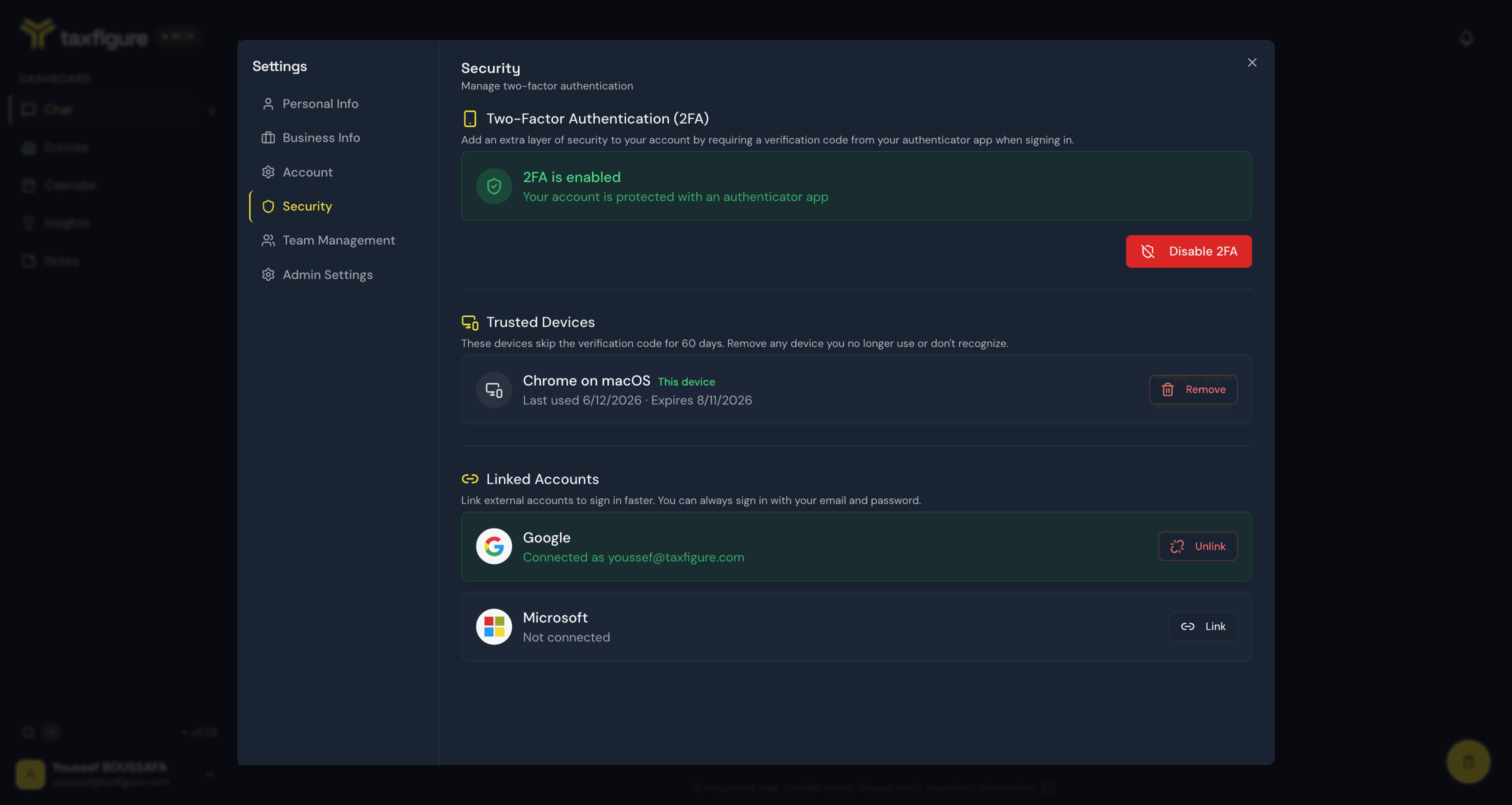
Click Remove next to any device you no longer use or don't recognize — it will be asked for a verification code on its next sign-in.
Linked accounts
You can link your TaxFigure account to Google or Microsoft to enable single sign-on alongside your email and password.
- Link Google — connects your Google account. Once linked, you can sign in by clicking Sign in with Google on the sign-in page.
- Link Microsoft — same idea, for Microsoft accounts.
Each provider's row shows the current status (Connected or Not connected) and a button to link or unlink.
Linking is additive — you can always sign in with your email and password even after linking, unless you remove the password from your account.
Unlink a provider
If you want to disconnect Google or Microsoft:
- Open Settings → Security.
- Click Unlink next to the provider.
- Confirm.
Make sure you have at least one other way to sign in (password or another linked provider) before unlinking your last sign-in method.