
Running a review
Start each stage's analysis, clear the readiness gate, and complete stages in order.
A review runs one stage at a time. You start a stage's AI analysis, review the findings it returns, action each one, then complete the stage to unlock the next. This page covers the mechanics; see Working with findings for how to action the findings themselves.
The stage rail
The left rail lists all four stages with their status:
- Locked — not available yet; complete the prior stage first.
- Ready — available to start.
- In progress — analysis has run; findings are waiting for your action.
- Completed — done; its flags carry forward to Stage 04.
Stage 01 is always the starting point. The other three unlock in turn.
The readiness gate
Before a stage runs, TaxFigure checks that the entity has the source documents the analysis needs. The start screen shows the stage's purpose, the Required Documents for the entity type, and the typical runtime.
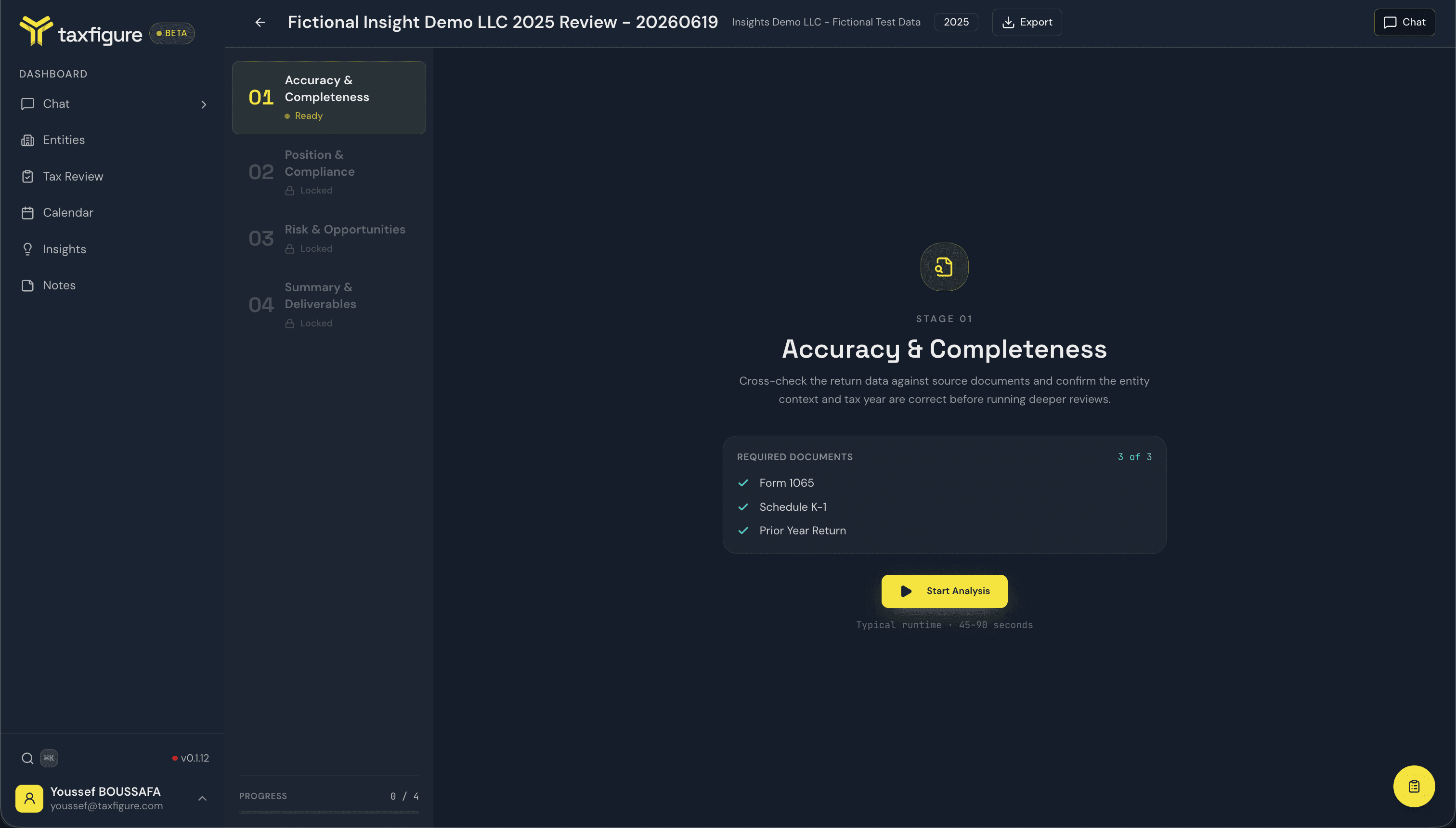
- Required Documents — each document type the stage needs, checked off as present or missing, with a running count (e.g. 1 of 3).
- Entity type — the analysis keys off the entity's type (which sets the return form — Form 1065, 1120-S, 1120, Schedule C, or 1040). If the entity type isn't set, the stage is blocked until you set it on the entity. See Entities.
If documents are missing you can still proceed, but the analysis has less to work with — upload what you can from the entity's Documents tab first for the best results.
Start the analysis
Click Start Analysis. The stage runs for about 45–90 seconds, and findings stream in one at a time as they're generated. A processing banner at the top shows the current step (e.g. Cross-referencing schedule entries…), the number of findings received so far, and elapsed time.
You don't have to wait on the page — the review keeps its progress, and you can return to it from the reviews list.
What each stage analyzes
Stage 01 · Accuracy & Completeness Validates return totals against source documents, cross-references schedule entries, and surfaces arithmetic anomalies. Findings are accuracy checks and completeness checks.
Stage 02 · Position & Compliance Compares current-year positions against prior-year filings, flags changed positions and elections, and surfaces the special forms required to report them. Findings are position changes and compliance flags.
Stage 03 · Risk & Opportunities Looks for ways to maximize deductions and credits, evaluates election choices, and flags missed planning opportunities for the current and following years. Findings are risk flags and opportunities.
Stage 04 · Summary & Deliverables Aggregates everything you flagged in Stages 01–03 into verification items and drafts client recommendations. Covered in detail in Finishing & exporting.
Complete a stage
When you've actioned the findings, the footer enables the Complete Stage button (e.g. Complete Stage 01). A confirmation dialog summarizes what you actioned and reminds you that flagged items carry forward to Stage 04 for verification.
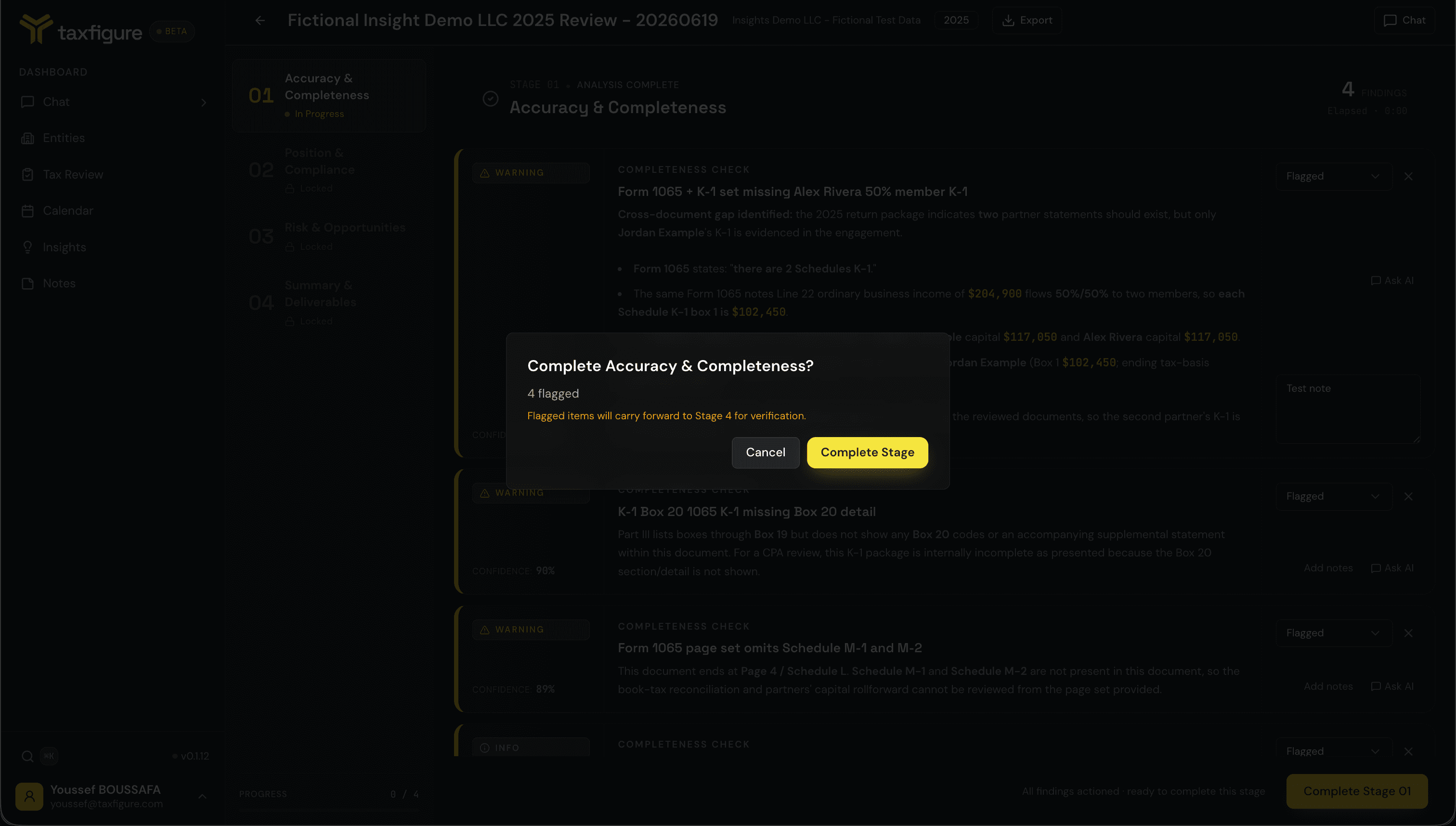
Confirm to lock the stage and unlock the next one. Anything you flagged in Stages 01–03 reappears in Stage 04 as a verification item, tied back to the finding it came from. Cleared and skipped findings stay put in their own stage.
You work through Stages 02 and 03 the same way, each gated by its own required documents, until you reach Stage 04.
Where to go from here
- Working with findings — action, note, and dig into each finding.
- Finishing & exporting — Stage 04 and the export formats.