
Working with findings
Read a finding card, action it, add notes, dig deeper, and ask the AI for help.
Each stage returns a list of findings. Every finding is a card you review and act on — clearing the ones that check out, flagging the ones that need follow-up, and skipping anything not relevant. A stage isn't complete until every finding has an action.
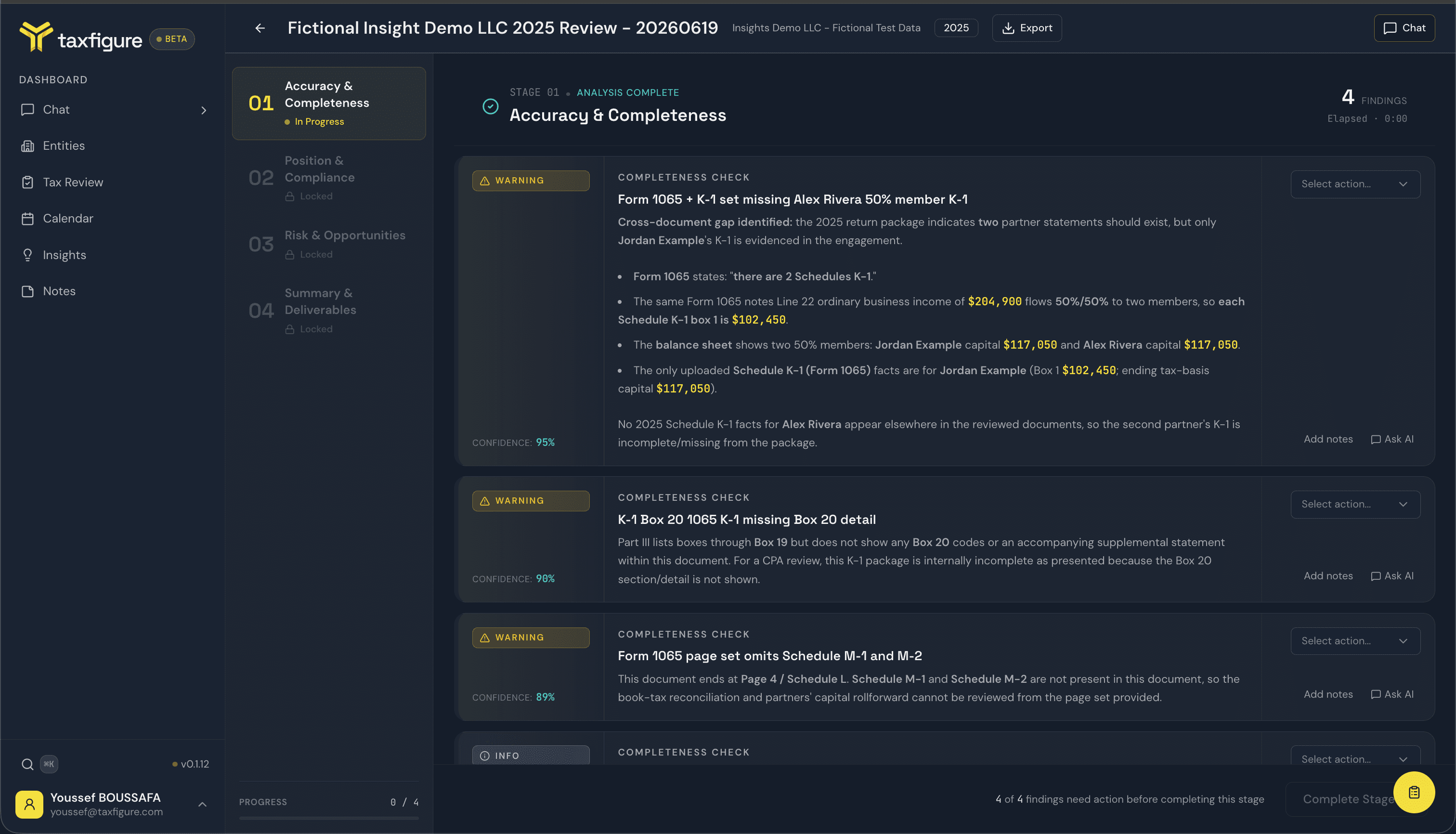
Anatomy of a finding
- Type — a label for what the finding is: Completeness Check, Accuracy Check, Position Change, Compliance Flag, Risk Flag, Opportunity, and (in Stage 04) Verification Item and Client Recommendation.
- Severity — Info, Warning, or Critical, color-coded down the left edge of the card.
- Confidence — how confident the AI is in the finding, shown as a percentage. Treat it as a prompt for your judgment, not a verdict.
- Title and description — the finding itself, with the supporting detail (amounts, document references, and reasoning) below it.
Action a finding
Open the Select action… dropdown on the right of each card. In Stages 01–03 you have three choices:
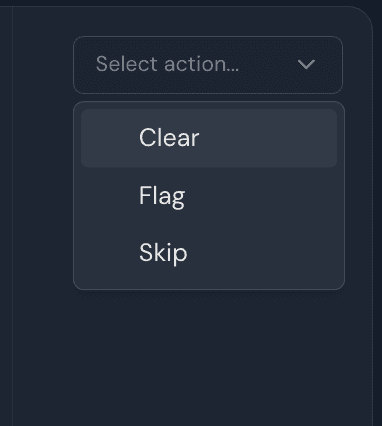
- Clear — the finding checks out; no further action needed. Shows as Cleared.
- Flag — the finding needs follow-up. Shows as Flagged, and carries forward to Stage 04 for verification.
- Skip — not relevant to this engagement. Shows as Skipped.
The card recolors to match its action, and the footer tracks how many findings still need one (e.g. 4 of 6 findings need action). To change your mind, reopen the menu and pick Clear to reset, or choose a different action.
Stage 04 uses a different action set — Verify / Flag for verification items and Clear / Remove for recommendations. See Finishing & exporting.
Add notes
Click Add notes on a card to attach a short note — your reasoning, a question for a teammate, or a reminder of what to confirm. Notes are saved with the finding and included in the exports.
Dig Deeper
In Stages 02 and 03, top-level findings have a Dig Deeper button. It runs a focused follow-up analysis and attaches any sub-findings it turns up beneath the original card, each with its own action control.
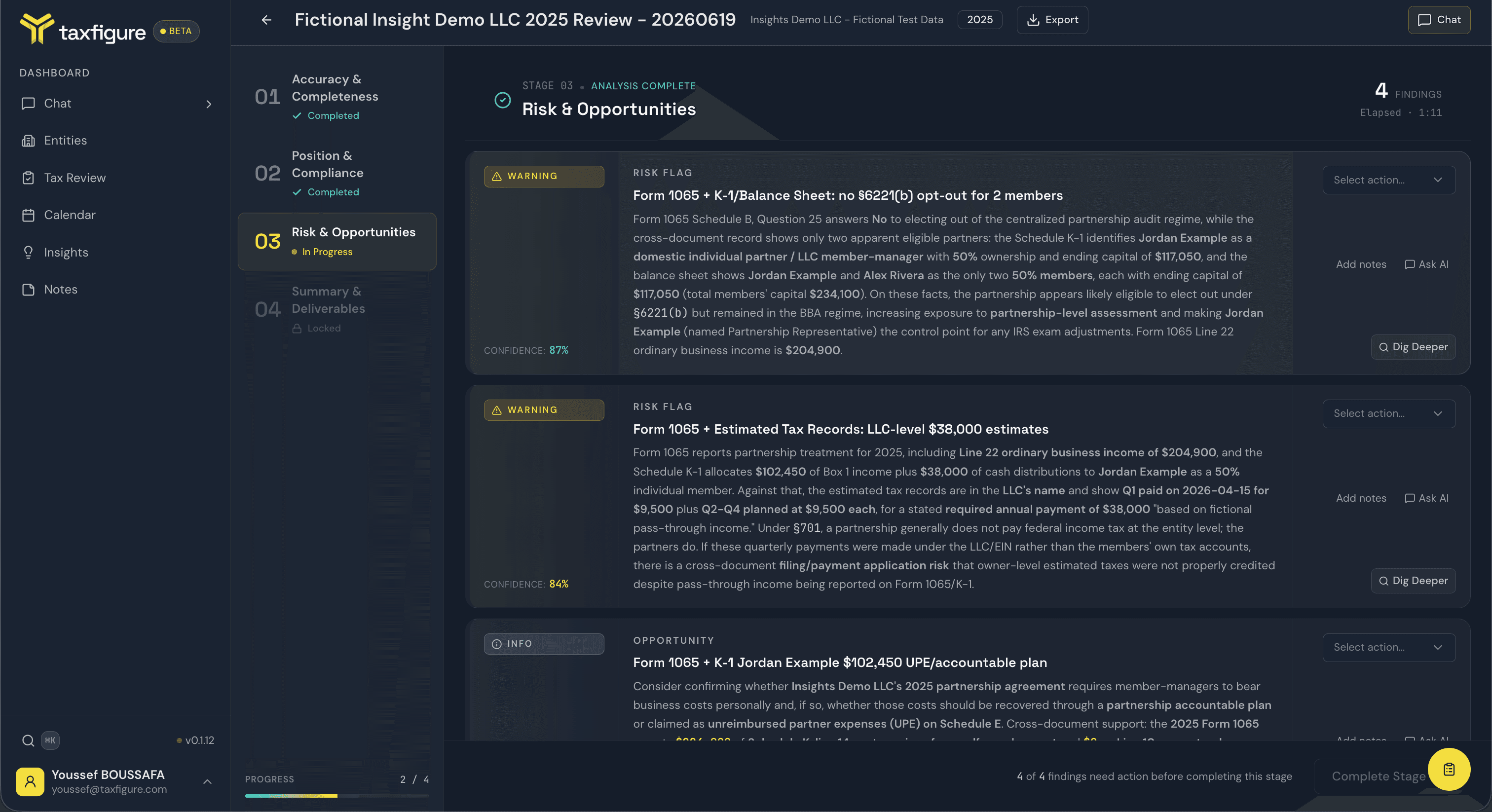
While it runs, the button shows Analyzing…. When it finishes you'll see either the new sub-findings or No further detail if there was nothing more to surface. If a dig is still pending after about five minutes, the button offers to Try again.
Ask the AI
Click Ask AI on a finding to open the stage chat — a chat panel scoped to the current stage, with that finding attached as context. Use it to ask how to resolve a finding, what a number ties to, or what to tell the client.
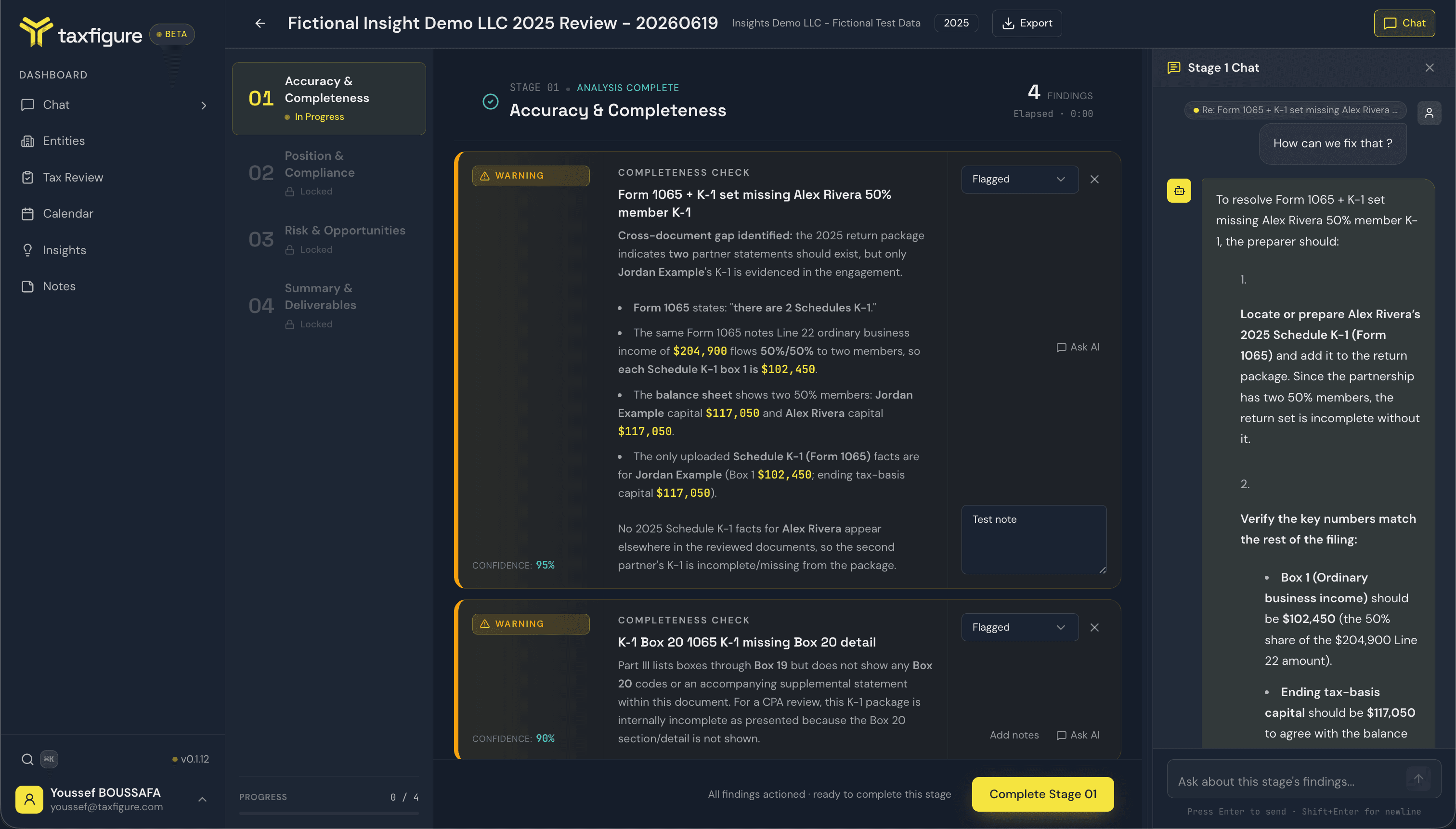
The conversation stays with the stage, so you can pick it back up later. For general questions outside a review, use AI Chat.
Where to go from here
- Finishing & exporting — consolidate flags in Stage 04 and export the results.
- Running a review — the stage flow and completion gate.